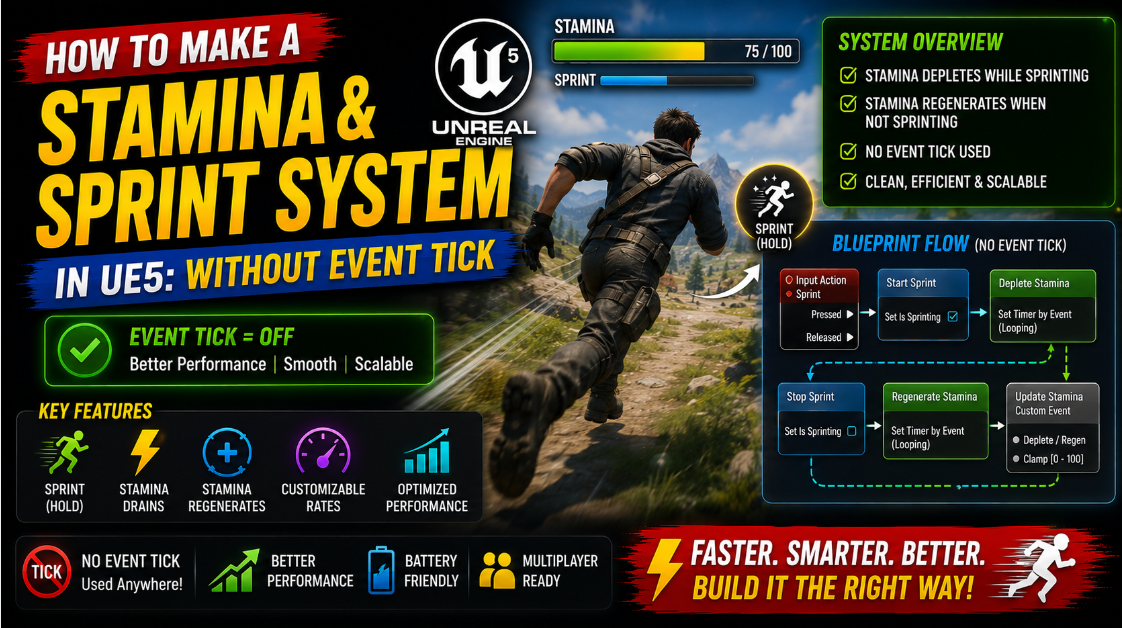
How to Make a Stamina & Sprint System in UE5: Without Event Tick
Most stamina system tutorials show you the same thing. Drain stamina on Event Tick while sprinting, regenerate stamina on Event Tick when not sprinting, done. It works in a basic test scene but the moment you put this into a real game with several characters using the same logic you start noticing the cost. Event Tick runs every single frame for every actor that uses it, and on a mobile device running at 60 frames per second that adds up fast if you have an entire system built entirely around constant per frame checks.
There is a much better way to build this using Timers instead. A Timer based stamina system runs exactly as often as it actually needs to, not 60 times a second regardless of whether anything changed. In this article I will show you how to build a complete stamina and sprint system that never touches Event Tick and performs significantly better, especially important for Android where every bit of CPU time matters.
Why Event Tick Is the Wrong Tool Here
Before building the actual system it helps to understand exactly why Tick causes problems for something like stamina.
Event Tick fires every single frame without exception. For a stamina system this means your Blueprint is checking whether the player is sprinting, calculating drain amounts and updating UI 60 times every single second even during moments when absolutely nothing about the stamina value actually needs to change. If a player is standing completely still your stamina logic is still running 60 times a second doing essentially nothing useful.
This becomes a real problem when you have multiple AI characters that also use stamina for things like sprinting away from the player or performing special abilities. Ten enemies all running their own Tick based stamina checks means 600 calculations happening every single second across your level, most of which are not actually changing anything meaningful.
A Timer fires at whatever interval you tell it to, and more importantly you can start and stop it exactly when you need it. When the player is not sprinting there is no reason for any drain calculation to be running at all, and a Timer based approach lets you simply turn the whole system off until it is actually needed.
Step 1: Set Up the Core Stamina Variables
- Open your Character Blueprint and add the following variables.
- MaxStamina as a Float. This is the maximum stamina value, something like 100.
- CurrentStamina as a Float. This should be set equal to MaxStamina when the game begins.
- StaminaDrainRate as a Float. This is how much stamina is lost per drain tick, something like 5.
- StaminaRegenRate as a Float. This is how much stamina is regained per regen tick, something like 3.
- IsSprinting as a Boolean. This tracks whether the player is currently holding the sprint input.
- CanSprint as a Boolean. This tracks whether the player currently has enough stamina to sprint at all, which matters separately from whether they are pressing the sprint button.
- StaminaTickInterval as a Float. This controls how often your Timer actually fires, something like 0.2 seconds. This is the key value that replaces Tick’s fixed 60 times a second rate with something far more reasonable for a stat that does not need updating every single frame to feel smooth.
Step 2: Handle the Sprint Input
Bind your sprint input action, typically a button or the same key used for run, to two events. Pressed and Released.
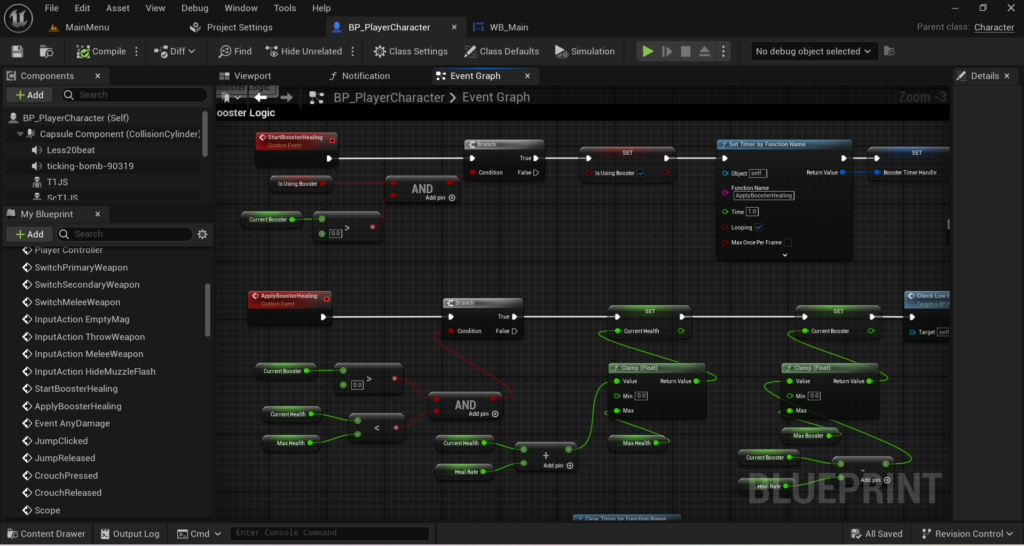
On Pressed set IsSprinting to True. Then check CanSprint. If CanSprint is also True, start your sprint logic which we will build in the next step. If CanSprint is False, meaning stamina is too low, do not actually start sprinting even though the player is holding the button, since you do not want the player draining into negative stamina or sprinting on empty.
On Released set IsSprinting to False and stop the drain timer immediately, which we will also set up shortly.
Step 3: Build the Drain Timer
Create a custom event called StartStaminaDrain.
Inside this event call Set Timer by Function Name, or if you prefer a cleaner approach use Set Timer by Event with a custom event reference. Set the Time parameter to your StaminaTickInterval variable and make sure Looping is checked so it repeats automatically rather than firing only once.
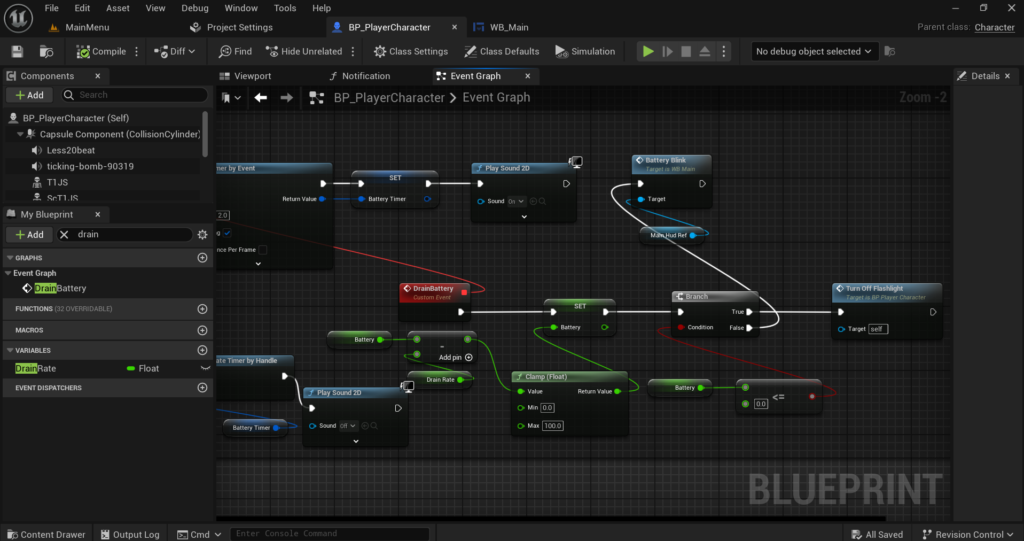
Create a separate custom event called DrainStaminaTick. This is the function your Timer will call repeatedly. Inside it subtract StaminaDrainRate from CurrentStamina and clamp the result between 0 and MaxStamina using a Clamp (Float) node, then set this back into CurrentStamina.
After updating the value check if CurrentStamina has reached 0 using a Less Equal (Float) node. If True set CanSprint to False, set IsSprinting to False, force the character’s movement speed back to walking speed instead of sprinting speed, and clear the drain timer using Clear and Invalidate Timer by Handle, since there is no reason to keep calling a drain function once stamina has hit zero and sprinting has been forcibly stopped.
Step 4: Stop the Drain Timer When Sprint Is Released
Going back to your sprint input’s Released event, after setting IsSprinting to False call Clear and Invalidate Timer by Handle using the same Timer Handle reference you stored when you started the drain timer in Step 3.
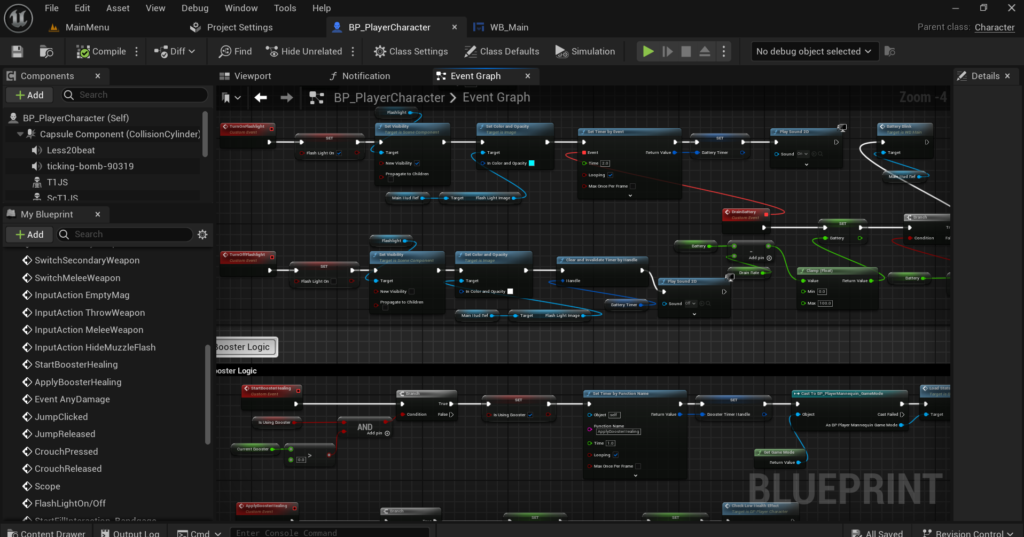
This is one of the most important advantages of the Timer based approach. The moment the player lets go of sprint, the entire drain calculation simply stops running altogether rather than continuing to check a condition every frame that has already become irrelevant. There is zero ongoing cost for stamina drain logic while the player is not actually sprinting.
Step 5: Build the Regeneration Timer
Stamina regeneration needs its own separate Timer that runs while the player is not sprinting and has less than full stamina.
Create a custom event called StartStaminaRegen. This should be called from your sprint input’s Released event, right after stopping the drain timer, and also from your DrainStaminaTick event in the case where stamina hits zero and sprinting is forced to stop.
Inside StartStaminaRegen first check if CurrentStamina is already equal to MaxStamina using an Equal (Float) node. If it already is, there is nothing to regenerate so simply return without starting anything. If it is not at max, call Set Timer by Event again, this time targeting a custom event called RegenStaminaTick, using the same StaminaTickInterval for consistency, with Looping checked.
Inside RegenStaminaTick add StaminaRegenRate to CurrentStamina, clamp it between 0 and MaxStamina, and set it back into CurrentStamina. Check if CurrentStamina has reached MaxStamina using a Greater Equal (Float) node. If True clear and invalidate the regen Timer since there is no reason to keep adding stamina once it is already full.
Also inside RegenStaminaTick check if CurrentStamina has climbed back above some minimum threshold, something like 10 percent of MaxStamina, and if so set CanSprint back to True so the player is allowed to sprint again once they have recovered enough stamina, even if they have not fully regenerated back to max yet.
Step 6: Handle the Edge Case of Sprint Being Pressed During Regen
A detail that is easy to miss is what happens if the player releases sprint, regen starts, and then they immediately press sprint again before regen has finished running.
In your sprint input’s Pressed event, right before starting the drain timer, add a call to Clear and Invalidate Timer by Handle for your regen Timer Handle as well. This ensures that if the player starts sprinting again mid-regeneration the regen Timer is properly stopped first, rather than having both the drain Timer and the regen Timer accidentally running and fighting against each other’s stamina changes at the same time.
This is a small detail but it is exactly the kind of bug that a Tick based system would not have in the first place, since Tick just checks the current state every frame rather than relying on explicitly started and stopped timers, so it is worth being deliberate about handling this transition correctly.
Step 7: Update the Movement Speed Based on Sprint State
Stamina alone does not make the character actually move faster. You still need to adjust the character’s movement speed when sprinting starts and stops.
In your sprint input’s Pressed event, after confirming CanSprint is True, get your Character Movement Component and call Set Max Walk Speed with your sprint speed value, something like 600 compared to a normal walk speed of 300.
In your sprint input’s Released event, and also in the case where stamina hits zero inside DrainStaminaTick, call Set Max Walk Speed again but with your normal walking speed value instead, returning the character to regular movement speed.
Step 8: Build a Smooth Stamina Bar UI
Just like with the health bar system, a stamina bar that snaps instantly between values looks unpolished compared to one that animates smoothly.
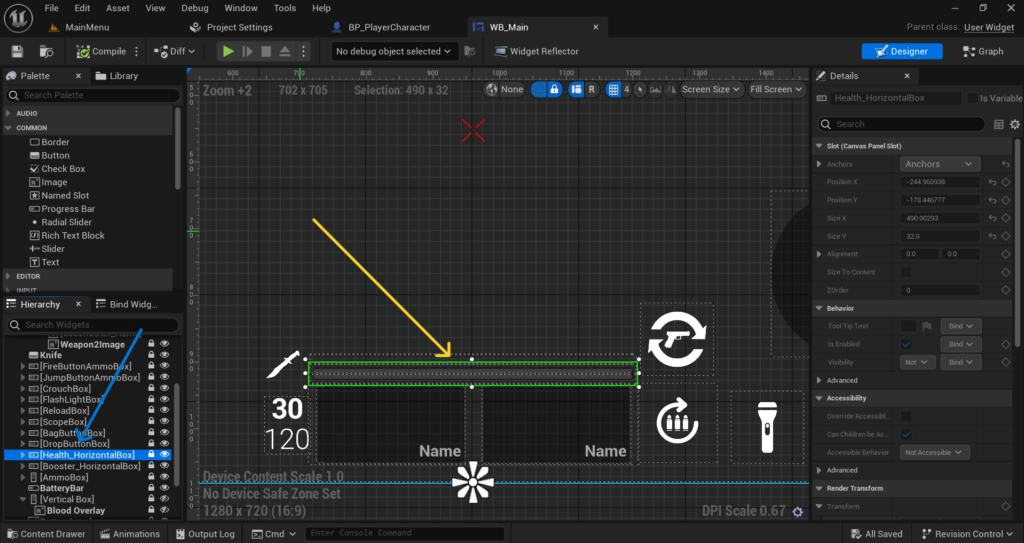
In your Stamina Bar Widget Blueprint create a DisplayedStamina float variable. On the widget’s Tick event, which is a completely different and acceptable use of Tick since it is purely visual interpolation rather than gameplay logic, use an Interp To node to smoothly move DisplayedStamina toward the actual CurrentStamina value from your character. Bind your progress bar’s percentage to DisplayedStamina divided by MaxStamina.
It is worth clarifying here that using Tick for purely visual smoothing inside a UI widget is completely fine and is a different situation entirely from using Tick to drive your actual gameplay logic like drain and regen calculations. The goal of avoiding Tick in this article specifically applies to the stamina value calculations themselves, not to visual polish that genuinely benefits from updating every frame.
Step 9: Add a Short Regen Delay After Sprinting Stops
Many stamina systems feel better if there is a brief pause after the player stops sprinting before regeneration actually begins, rather than regen starting instantly the moment the sprint button is released.
To add this, instead of calling StartStaminaRegen directly from your sprint Released event, first call a Delay node with a short duration like 0.5 to 1 second, and only call StartStaminaRegen after this delay completes. This creates a small natural pause that feels more deliberate than instant regeneration, similar to how stamina systems work in many action and survival games.
Make sure that if the player presses sprint again during this delay window, the delay itself does not still trigger regen afterward incorrectly. The simplest way to handle this is to check IsSprinting again right after the Delay completes, before calling StartStaminaRegen, and only proceed if the player is still not sprinting at that point.
Step 10: Test the System Thoroughly
Before considering this system finished test the following specific scenarios since they cover the situations where Timer based logic can behave unexpectedly if not handled carefully.
Test holding sprint until stamina fully drains and confirm sprinting stops automatically and movement speed correctly returns to normal. Test releasing sprint partway through and confirm regeneration begins and successfully refills stamina back to maximum over time.
Test rapidly tapping the sprint button on and off repeatedly and confirm you do not end up with multiple drain or regen timers running simultaneously and fighting over the same CurrentStamina value. Test what happens if stamina is regenerating and the player presses sprint again before reaching the minimum threshold required by CanSprint, confirming the character correctly cannot sprint again until enough stamina has recovered.
Final Thoughts
Building a stamina system around Timers instead of Event Tick takes slightly more setup upfront since you need to explicitly start and stop the drain and regen logic at the right moments, but the performance benefit is real and becomes increasingly important the more characters in your game end up using a similar system. A mobile game with multiple AI enemies that also use stamina based abilities benefits significantly from this approach compared to having every single one of them running constant per frame checks regardless of whether anything is actually happening.
The core idea to take away from this article applies well beyond just stamina. Any gameplay value that changes at a predictable interval rather than needing constant per frame precision is usually a strong candidate for a Timer based approach instead of Tick, and learning to recognize which systems in your game actually need frame perfect updates versus which ones can run on a much more relaxed interval is a skill that pays off across your entire project as it grows in complexity.
If your stamina system is draining incorrectly or your timers are not stopping when they should, reach out at Admin@KaliPress.fun and I will help you figure out exactly where the logic is going wrong.

Solo Indie Game Developer and Unreal Engine (UE4 & UE5) Specialist with over 5 years of experience building optimized Android games from scratch.
I specialize in handling the full development pipeline independently taking mobile titles from concept to high-performance, publishing ready APK/AAB builds. Highly focused on rendering optimization for low-to-mid range devices, Blueprint scripting, and custom mechanics.
Through this blog, I share my practical knowledge and tutorials to help aspiring developers master the Unreal Engine mobile ecosystem.