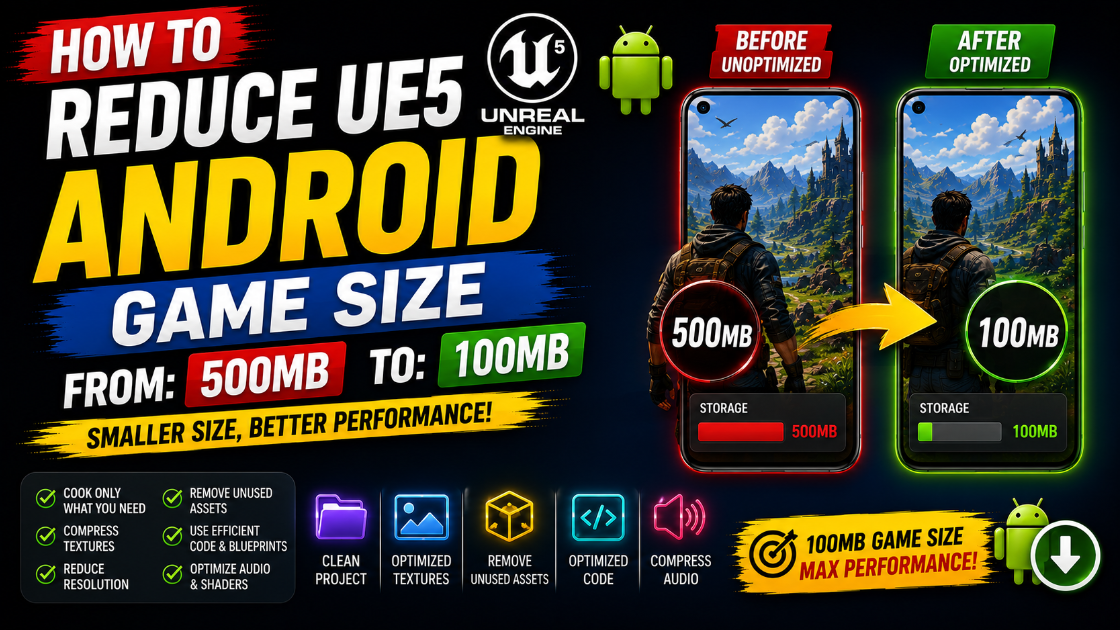
How to Reduce UE5 Android Game Size From: 500MB to 100MB
Packaging your UE5 game for Android and seeing a 500MB or 600MB APK sitting there is a gut punch. That size will kill your downloads before your game even gets a chance. Studies show that every 10MB increase in app size results in a measurable drop in install conversions on the Play Store. At 500MB you are losing a massive chunk of potential players who either do not have the storage space or do not want to burn their mobile data downloading your game.
The good news is that UE5 games are almost always bloated by default because the engine includes everything and assumes you will trim it down yourself. With the right settings a 500MB game can realistically come down to 100MB or even less depending on your content. In this article I will walk you through every step that actually makes a difference.
Why UE5 Games Are So Large by Default
Before getting into the fixes it helps to understand where all that file size is actually coming from.
UE5 includes a massive amount of engine content, shader libraries and default assets in every packaged build. A lot of this is content your game never uses but gets bundled in anyway. On top of that textures in UE5 default to very high resolutions and uncompressed formats that look great on screen but add enormous amounts of data to your APK. Audio files also add up fast especially if you are using high quality WAV files instead of compressed formats.
Then there is the issue of development content. Test maps, placeholder assets, debug tools and unused Blueprints all end up in your packaged build if you do not specifically exclude them.
Understanding these sources helps you attack the problem systematically instead of randomly tweaking settings and hoping for the best.
Step 1: Switch from Development to Shipping Build
This single change can reduce your APK size by 30 to 50MB immediately.
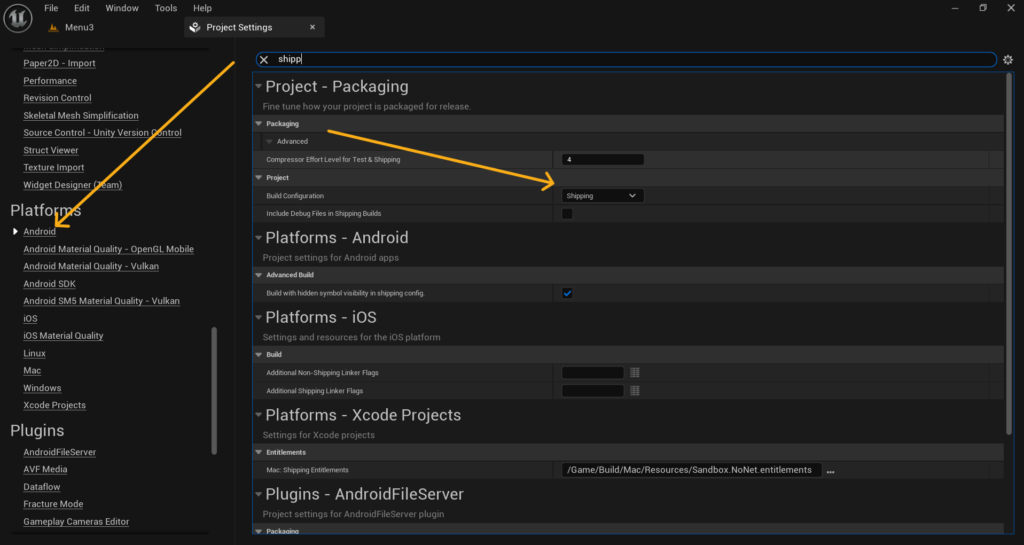
When you package your game go to Platforms > Android > Package and make sure the build configuration is set to Shipping not Development or Debug.
A Development build includes debugging tools, logging systems, profiling hooks and extra code that helps you find bugs during testing. All of that is useful while you are working on the game but it adds significant size and should never be in a build you publish.
A Shipping build strips all of that out and only includes what the game actually needs to run. This is the first thing to change and it costs you nothing in terms of visual quality or gameplay.
Step 2: Enable Project Based Packaging and Exclude Unused Content
By default UE5 packages everything in your Content folder whether your game uses it or not. If you have test maps, imported assets you never ended up using or sample content from the marketplace sitting in your project all of it goes into the APK.
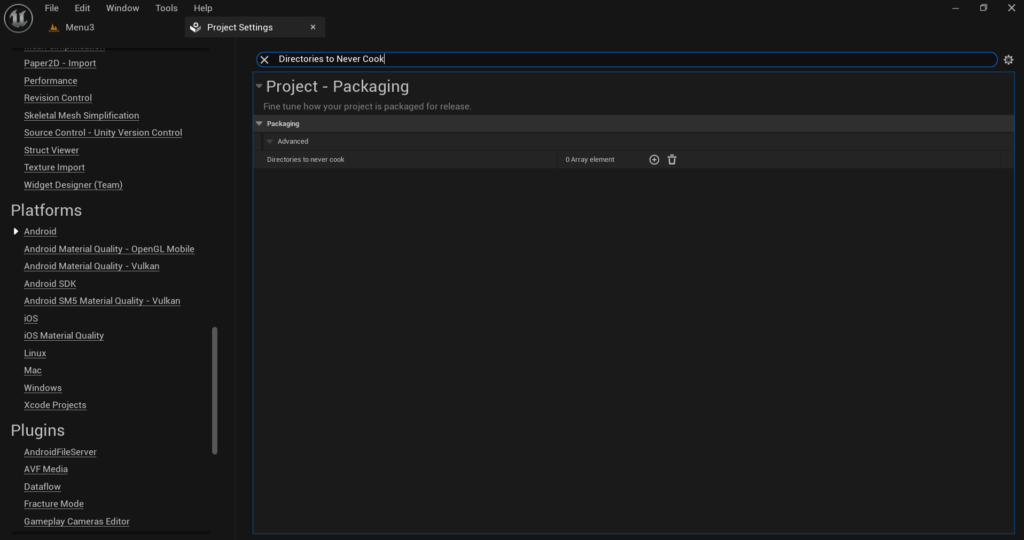
Go to Edit > Project Settings > Project > Packaging and find the section called Directories to Never Cook. Add any folders here that contain content you do not want in the final build. Test maps, temporary assets, placeholder content and anything else that exists in your project for development purposes but is not part of the actual game should go in this list.
Also in the same section find Cook only maps from the list and enable it. Then in the List of maps to include in a packaged build section add only the maps that your game actually uses. This prevents UE5 from cooking every single level in your project including ones you may have created for testing.
These two changes alone can cut significant MB from your build depending on how much unused content your project has accumulated.
Step 3: Compress and Optimize Your Textures
Textures are almost always the biggest contributor to APK size in a UE5 game. High resolution uncompressed textures can easily account for 200 to 300MB of your total build size. Go through your textures in the Content Drawer and check their settings. Open each texture and in the Details panel look at two things.
First check the Maximum Texture Size. For mobile games you rarely need textures above 1024×1024 pixels. If you have 2K or 4K textures on objects that the player barely notices reduce them to 1024 or even 512. The visual difference on a phone screen is much smaller than you would expect.
Second check the Compression Settings. For most textures this should be set to Default which uses DXT compression on desktop and ETC2 or ASTC on Android. If any textures are set to VT (Virtual Texture) or uncompressed formats change them to the appropriate compressed format.
For UI textures set them to UserInterface2D. For normal maps use Normalmap. For textures that only store data like masks or roughness maps set them to Masks.
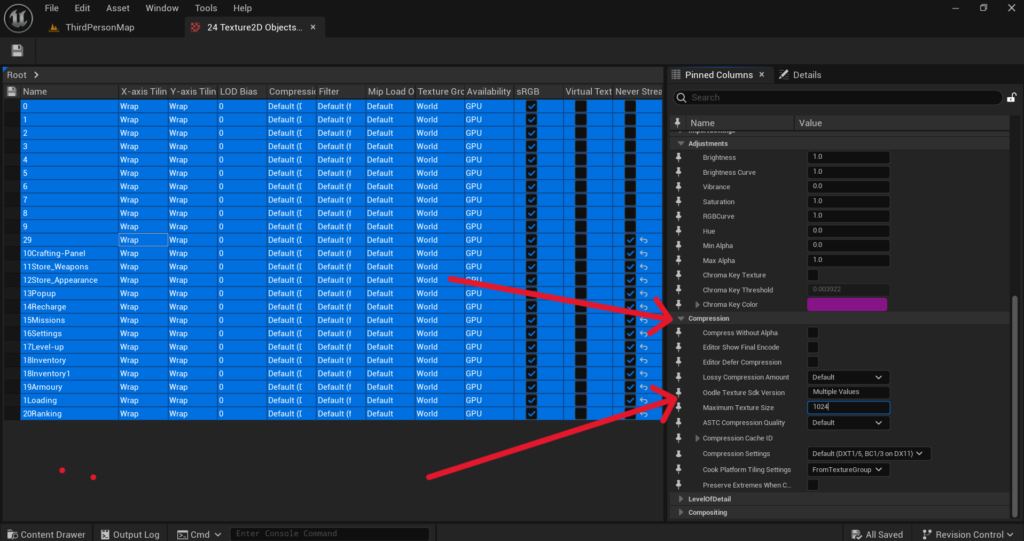
The fastest way to fix textures across your entire project is to select all textures in the Content Drawer by pressing Ctrl+A, right click and go to Asset Actions > Edit Selection in Property Matrix. Press Ctrl+A to select all textures in the matrix and then change the Maximum Texture Size and Compression Settings for all of them at once from the right side panel.
Step 4: Use ASTC Texture Compression for Android
Android supports a texture compression format called ASTC which gives you significantly better quality at smaller file sizes compared to older formats like ETC2.
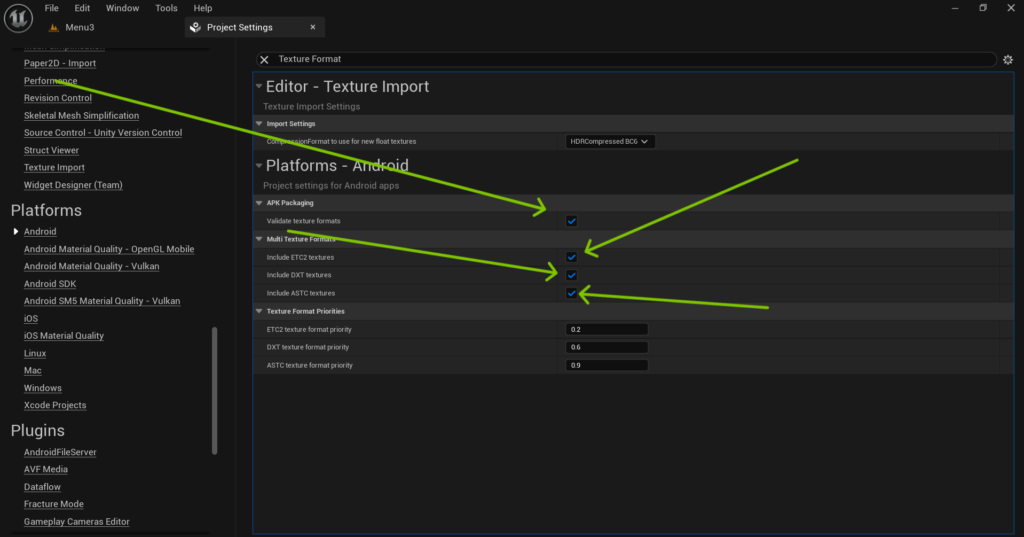
Go to Edit > Project Settings > Platforms > Android and find the Build section. Look for Texture Format options and make sure ASTC is enabled and prioritized. You can disable older formats like ETC1 entirely as they are only needed for very old Android devices that your game probably does not need to support anyway.
ASTC is supported on all Android devices running Android 5.0 and above and on all devices with an ARM Mali, Qualcomm Adreno or PowerVR GPU which covers the vast majority of the Android market. Switching to ASTC can reduce your texture data by 30 to 50 percent compared to uncompressed textures.
Step 5: Compress Your Audio Files
Audio is something most developers forget about when trying to reduce game size but it adds up quickly. A few minutes of background music in WAV format can easily be 50 to 100MB on its own.
Go through all your audio assets in the Content Drawer. Open each Sound Wave asset and in the Details panel find the Compression section. Set the Compression Quality to a value between 40 and 60. This uses lossy compression to reduce the file size significantly while keeping the audio quality at a level that is perfectly acceptable for a mobile game.
For background music which is typically long and high quality you can reduce the compression quality further to around 30 without noticeable degradation on phone speakers. For sound effects that are short and punchy keep the quality a bit higher around 50 to 60.
Also check the Sample Rate Quality setting. Most mobile game audio sounds perfectly fine at Medium or Low sample rates. High sample rates are overkill for phone speakers and earbuds and they add unnecessary file size.
Step 6: Remove Unused Plugins
Every plugin that is enabled in your project potentially adds code and assets to your build even if you never use any of its features.
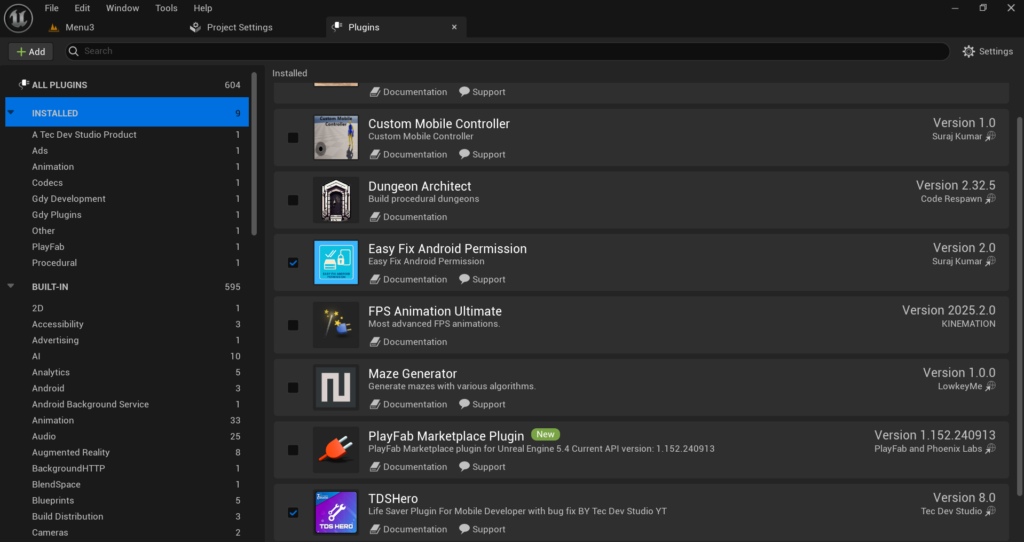
Go to Edit > Plugins and go through the list of enabled plugins carefully. Disable anything you are not actively using. Common culprits include online subsystem plugins for platforms you are not publishing on, VR and AR plugins, media player plugins and various marketplace plugins that you may have enabled at some point and forgotten about.
After disabling plugins restart the editor and do a test package. Some plugins add surprisingly large amounts of data to the build and removing them can have a noticeable impact on size.
Step 7: Set Up Pak File Compression
UE5 packages your game content into PAK files which are essentially compressed archives of all your cooked game data. Making sure these are compressed properly is an easy win for size reduction.
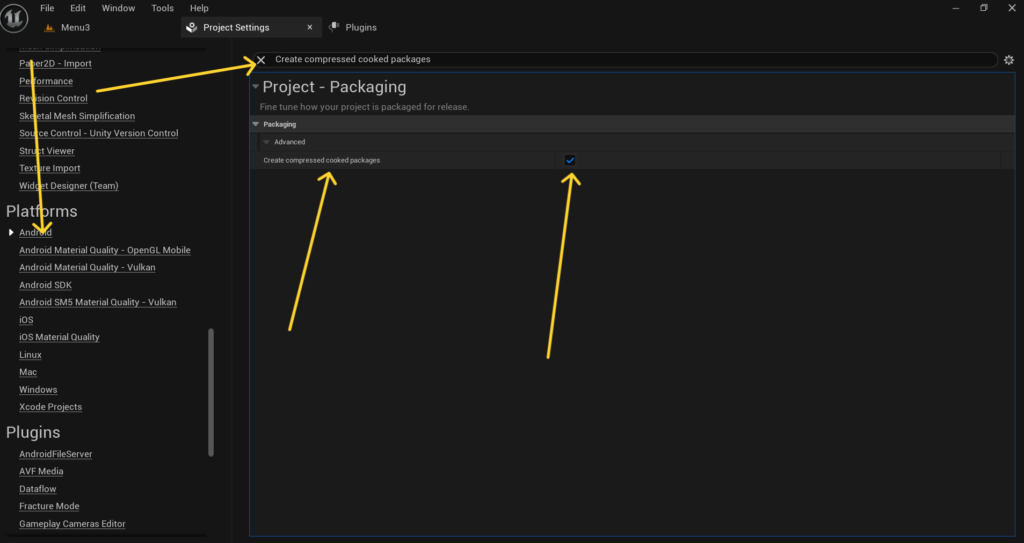
Go to Edit > Project Settings > Project > Packaging and find Create compressed cooked packages. Make sure this checkbox is enabled. This tells UE5 to compress the PAK files during packaging rather than storing the data uncompressed.
Also enable Share Material Shader Code in the same section. UE5 generates a lot of shader permutations and sharing shader code between materials reduces the amount of duplicated data in your build.
Step 8: Use Asset Manager to Audit Your Build
UE5 has a built-in tool called the Asset Manager that shows you exactly what content is going into your build and how large each asset is. This is invaluable for finding the specific files that are bloating your APK.
Go to Window > Asset Audit to open the Asset Audit window. From here you can see a breakdown of all your cooked assets sorted by size. Sort by size descending and look at the top entries. Often you will find a handful of large textures or audio files that are responsible for a disproportionate amount of your total build size.
Once you identify the biggest offenders go back and apply the texture and audio optimization steps from earlier specifically to those assets. Targeting the largest files first gives you the biggest size reduction for the least amount of work.
Step 9: Reduce Shader Permutations
Shaders are one of the more technical sources of APK bloat but they are worth addressing. UE5 generates a large number of shader permutations for every material in your project to handle different rendering scenarios. On mobile you do not need most of these.
Go to each of your Materials and in the Details panel find the Mobile section. Enable Use Full Precision only if you actually need it. For most mobile materials you do not.
Also consider using the Unlit shading model for materials that do not need lighting calculations. An unlit material is much simpler to compile and generates far fewer shader permutations than a lit material. UI materials, particle effects and some background elements are good candidates for the Unlit shading model.
Go to Edit > Project Settings > Engine > Rendering > Mobile and look for options to reduce shader complexity. Disabling features you are not using like Mobile High Quality BRDF reduces the number of shader permutations that get compiled into your build.
Step 10: Use Android App Bundle Instead of APK
This is a more advanced option but it can dramatically reduce the size of what players actually download even if the total build size stays the same.
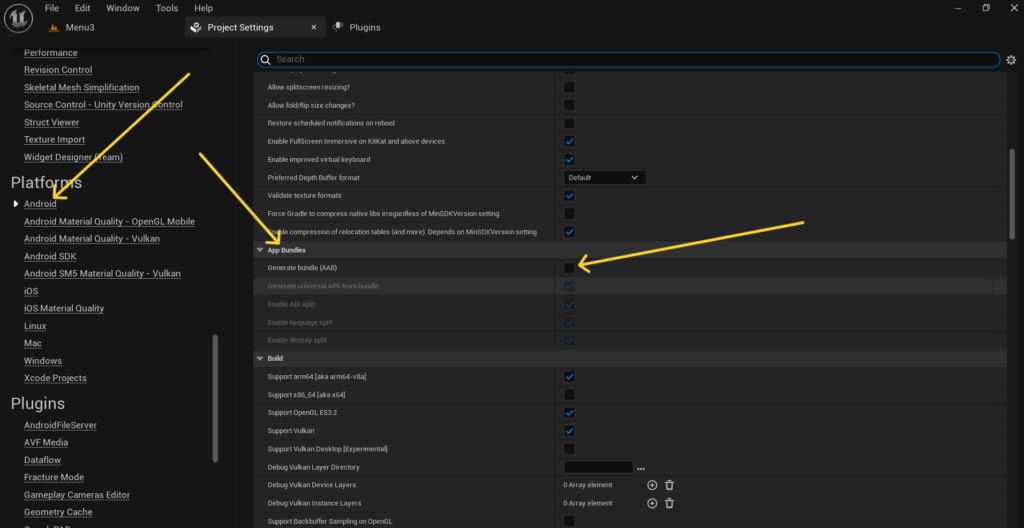
An Android App Bundle (AAB) is a publishing format that tells the Play Store to only deliver the parts of your game that a specific device needs. For example a device that uses ASTC texture compression will only download ASTC textures. A device that runs an ARM64 processor will only download the ARM64 native libraries.
With a regular APK every player downloads everything regardless of their device. With an AAB players only download what their specific device uses which can cut the actual download size significantly.
Go to Edit > Project Settings > Platforms > Android and find the Build section. Enable Build Android App Bundle instead of a regular APK. Note that AAB files can only be distributed through the Google Play Store. If you want to distribute your game directly as a file you will still need the regular APK.
Final Thoughts
Getting your UE5 Android game from 500MB down to 100MB is absolutely achievable. The steps that make the biggest difference are switching to a Shipping build, optimizing and compressing your textures using ASTC, compressing your audio files and excluding unused content from the cook.
Work through these steps in order and do a test package after every few changes so you can measure exactly how much each step is saving you. Knowing which changes have the biggest impact on your specific project helps you prioritize where to spend your time.
A smaller game means more downloads, better Play Store conversion rates and happier players who do not have to sacrifice storage space to play your game. That directly affects your revenue and your game’s success so this is absolutely worth getting right.
If your game is still larger than you want after going through everything in this article reach out at Admin@KaliPress.fun and I will help you track down what is still taking up space.

Solo Indie Game Developer and Unreal Engine (UE4 & UE5) Specialist with over 5 years of experience building optimized Android games from scratch.
I specialize in handling the full development pipeline independently taking mobile titles from concept to high-performance, publishing ready APK/AAB builds. Highly focused on rendering optimization for low-to-mid range devices, Blueprint scripting, and custom mechanics.
Through this blog, I share my practical knowledge and tutorials to help aspiring developers master the Unreal Engine mobile ecosystem.