Unreal Engine 5 Beginners Guide: A Super Easy Guide to Building Your Own Game World
Most people who want to make games have no idea where to start. Unreal Engine is the tool that changes that. It is what studios used to build games like PUBG, Fortnite and Black Myth Wukong and the same tool is available to anyone for free.
Think of it as a complete game building environment. You get terrain, lighting, characters, physics and entire world building tools all in one place. And the best part is that you do not need to know how to code to get started. You can place objects, build levels and set up gameplay using a visual system called Blueprints which works by clicking and connecting nodes instead of writing code.
Fun Thought: Imagine you have a magic sandbox. You put a tree here, a rock there, a bright sun in the sky and BOOM that’s your game world! That’s Unreal Engine
Opening Unreal Engine for the First Time
Okay, so you opened Unreal Engine and your eyes went wide It looks SO complicated, right! Don’t worry. Every superhero looks confused on their first day too. Let’s learn the main parts and I’ll explain each one like it’s a toy.
The Viewport
This is the BIG window in the middle. It’s like the window of your spaceship you can see your whole game world from here. If you put a tree somewhere you’ll see it right here.
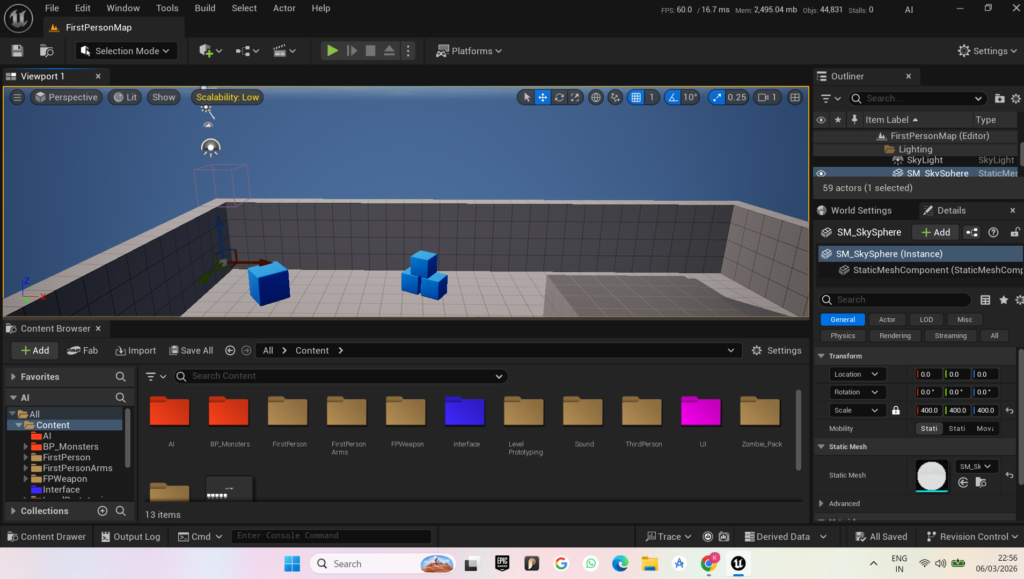
The Content Browser
This is at the bottom of the screen. Think of it like your toy box! It’s full of things you can use grass, rocks, characters, walls, lights. Everything is stored here and ready to use.
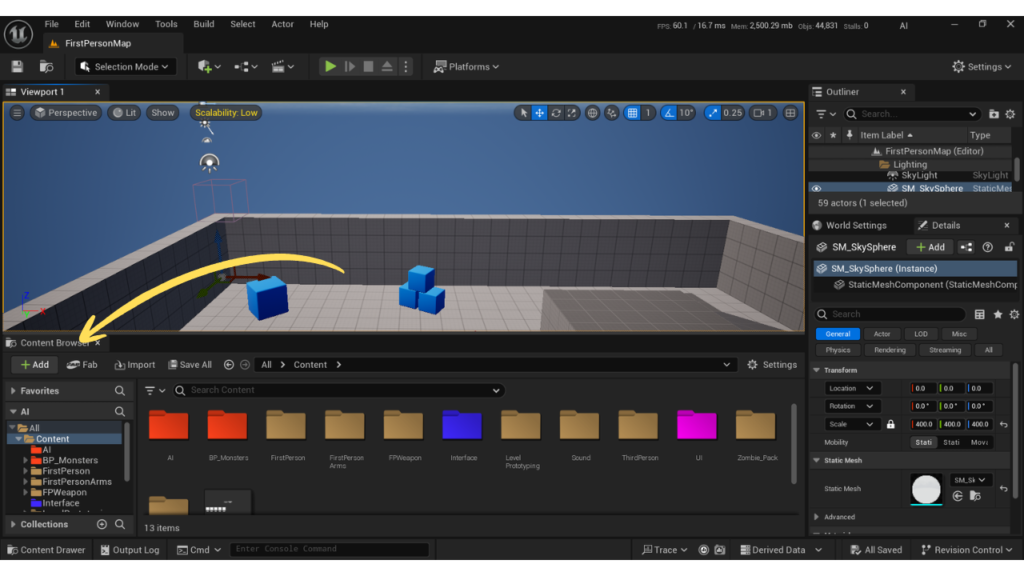
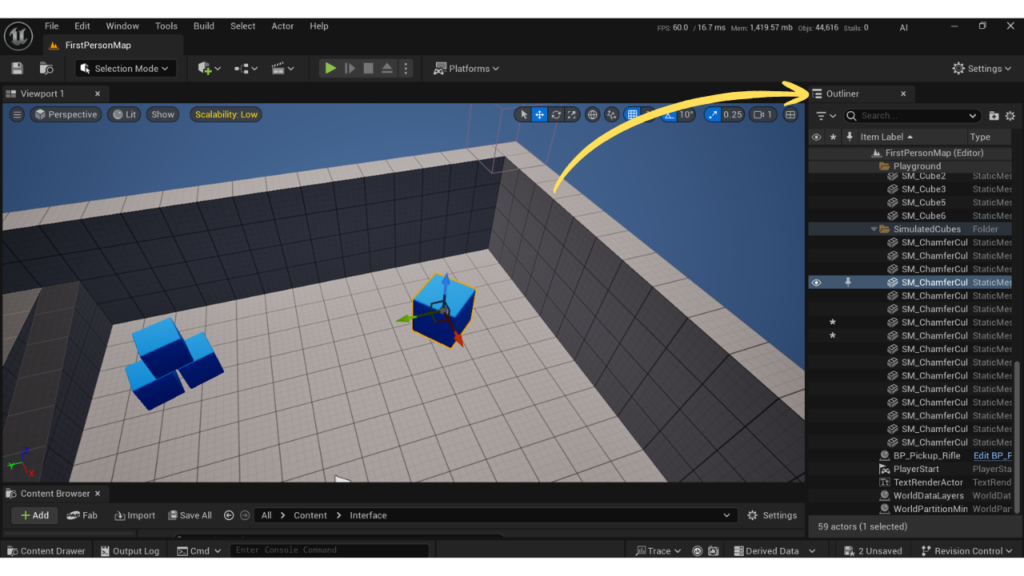
The Outliner
This is on the right side. It’s like a list of all the toys you placed on the floor. If you put 3 trees and a cube in your world, they’ll all show up here with their names.
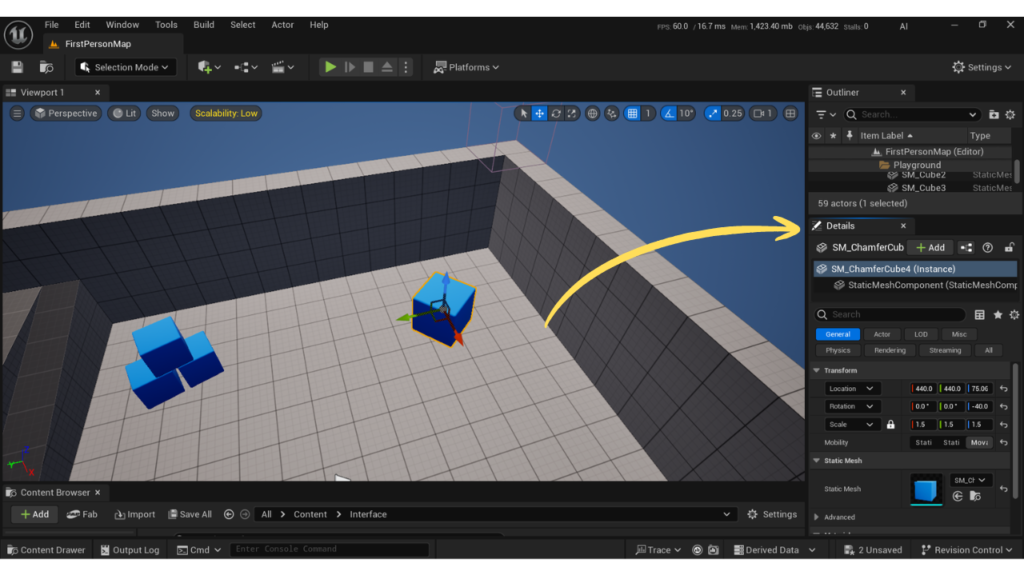
Details Panel
This is also on the right side just below the Outliner. When you click on an object (like a cube) this panel shows all the settings for it how big it is what colour it is where it’s sitting. Like a label on your toy that tells you everything about it!
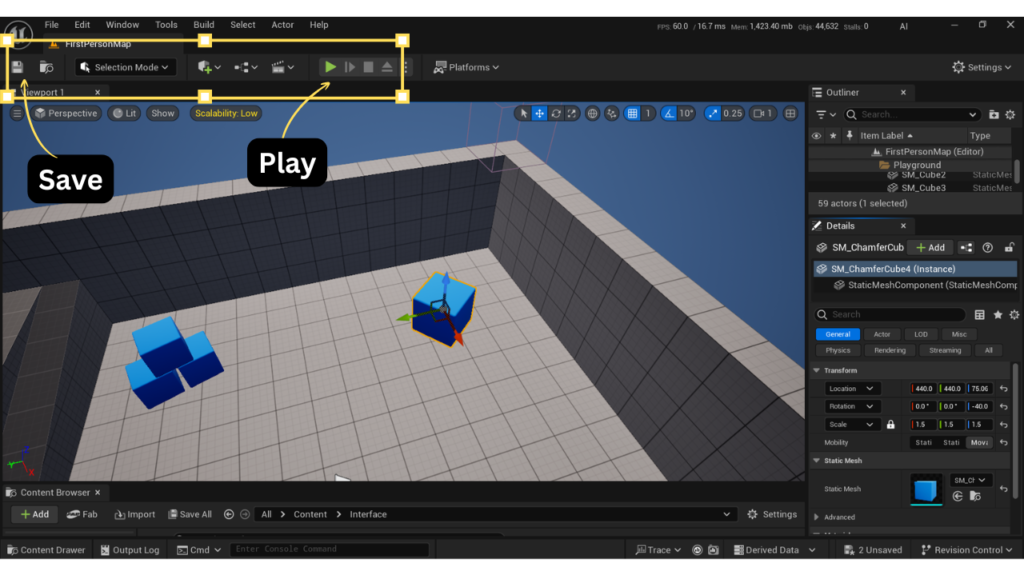
Tool bar
This is at the top. It has buttons for saving, playing your game, moving things, and more. Think of it as your game controller for the engine itself.
Keep In Mind: Nobody knows where everything is on Day 1. Even grown-up game developers had to learn this slowly. Just poke around and explore you won’t break anything.
Flying Around in the Viewport
Here’s the really fun part you can FLY inside your game world. It feels like being a tiny bird zooming through a jungle.
Here’s how to move around:
Hold the RIGHT mouse button, this lets you look around just like turning your head.
- Press W fly forward
- Press S fly backward
- Press A slide left
- Press D slide right
- Scroll the mouse wheel zoom in and out like a telescope
Mini Practice Task
Try these steps right now: Find a cube sitting in the world, Fly close to it using W, Look around it using your right mouse button, Fly up high by holding E, Zoom in and out with the scroll wheel.
You’re flying in 3D space just like a Superhero.
What is an “Actor”?
This is one of the most important words in all of Unreal Engine: ACTOR = Anything you place inside your game world. That’s it! Super simple. A cube? That’s an Actor. A tree? Actor. A light? Actor. Your playable character? Also an Actor. Even an invisible trigger on the floor is an Actor.
How do you add an Actor?
Go to the top and select the Shield Like Button and click Place Actors Panel!
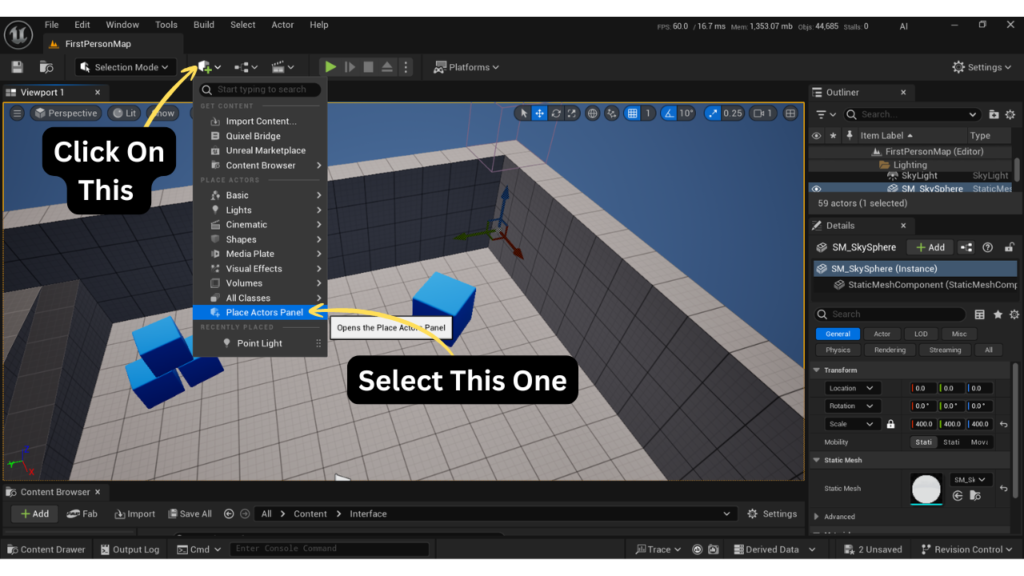
OR just drag something from the Content Browser into the Viewport
Click on it to select it it will get a little orange outline around it
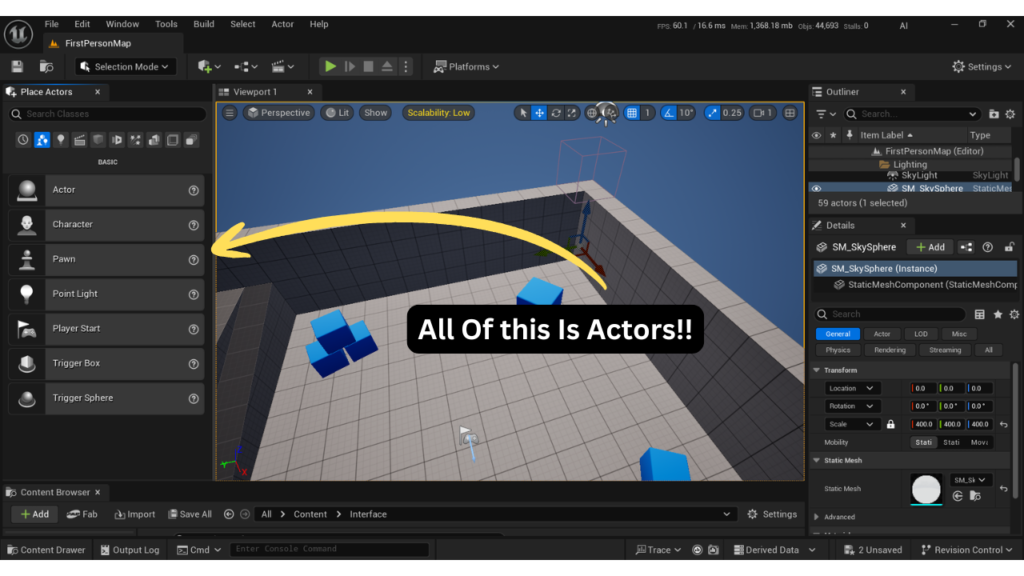
Mini Activity
Find a cube shape in Place Actors, Drag it into your world, Click on it to select it, Now press Ctrl+D to duplicate it wow… now you have two. Keep duplicating and make a big pile of cubes!
Move, Rotate, and Scale
Now that you’ve placed some Actors. Let’s learn how to move them around, spin them, and make them bigger or smaller. There are three magic tools and they have keyboard shortcuts.
- W key = Move Tool (moves the object left, right, up, or down)
- E key = Rotate Tool (spins the object around)
- R key = Scale Tool (makes it bigger or smaller)
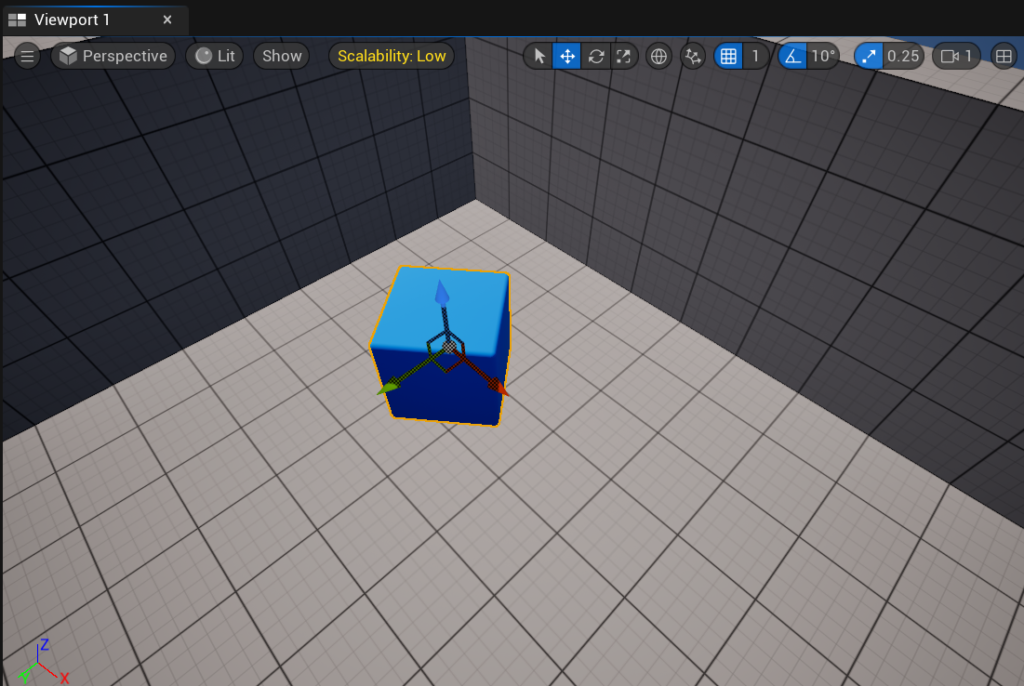
When you select an object and press W, you’ll see three coloured arrows appear on it. These arrows are called AXES:
Red Arrow = X axis (move it left or right)
Green Arrow = Y axis (move it forward or backward)
Blue Arrow = Z axis (move it up or down)
Just click and DRAG an arrow to move the object in that direction. It’s like grabbing a toy and pushing it across the table.
Beginner Challenge
Can you build a tiny house using only cubes?
Here’s your plan: 4 flat cubes for the walls, 1 wide flat cube for the roof, 1 tiny cube for the door. Use the Move tool (W) and Scale tool (R) to make everything fit together. Take your time there’s no rush.
Let There Be Light
Okay, imagine you’re building the coolest room ever but all the lights are off. You can’t see ANYTHING. That’s what happens in a game world without lights. Unreal Engine has different types of lights just like real life:
- Directional Light = Like the SUN! It lights up the whole world from one direction. Very bright reaches everywhere.
- Point Light = Like a light BULB! It glows in all directions from one spot. Put it in a room to light it up.
- Spot Light = Like a FLASHLIGHT. It shines in one specific direction like a spotlight on a stage.
Mini Experiment
Find the Directional Light in your world (it’s already there). Click on it and look at the Details Panel. Find the Color setting and change it to orange or red. Now your world has a sunset. Try changing the intensity too make it brighter or darker.
Materials and Colors
Right now your cubes probably look boring and grey. Let’s give them some color and style. In Unreal Engine, the “skin” or “paint” of an object is called a MATERIAL.
- A Material is like the outfit your object is wearing.
- A cube wearing a metal material looks like steel.
- A cube wearing a glass material looks see-through.
- A cube wearing a gold material looks shiny and golden.
How to put a material on an object
Open the Content Browser at the bottom Find a material (they have little sphere icons with different textures) DRAG the material onto your object in the Viewport. Let go and the object changes instantly.
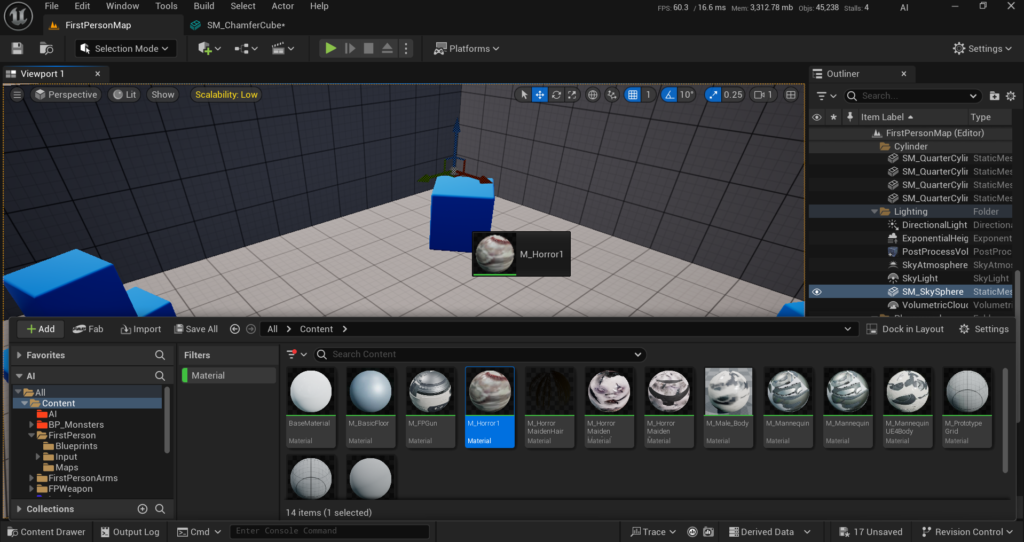
Fun things to try:
- Metal cube – it reflects light like real metal.
- Gold cube – shiny and sparkly.
- Glass cube – you can almost see through it.
The Play Button – Enter Your World
Okay. This is the moment. Look at the top of the screen. See that triangle button? That’s the PLAY button. When you press it you enter your game world as a player.
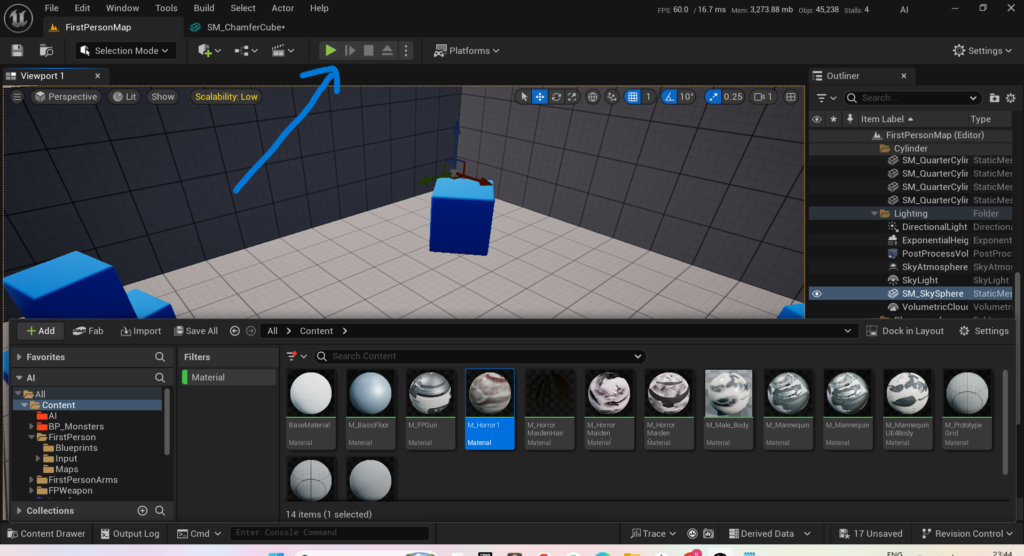
Press PLAY and you’ll be walking around INSIDE the world YOU built This is the moment most beginners say “Wait I actually MADE this.” Yes, you did. Walk around look at your cubes look at your lights. It’s YOUR creation. To exit Play mode just press Escape on your keyboard. And then go back and make it even better.
Common Beginner Mistakes
everyone makes mistakes even pro game developers. Here are the most common ones and easy fixes:
Mistake 1 – Accidentally Moving Objects: You clicked somewhere and now your cube flew off into the sky.
Fix: Press Ctrl+Z to UNDO. This brings everything back to how it was. You can press it many times.
Mistake 2 – Getting Lost in the Viewport: You flew around and now you can’t find your objects. It’s all dark.
Fix: In the Outliner on the right, find the name of your object and DOUBLE-CLICK it. The camera will zoom right to it.
Mistake 3 – Forgetting to Save: You built something amazing and then the computer crashed.
Fix: Always press Ctrl+S to save your work. Do it every few minutes. Make it a habit.
Mistake 4 – Messy Folders: You saved 50 files all called “NewMaterial” and now you can’t find anything.
Fix: Always name your files properly like “HouseMaterial” or “TreeActor”. Future you will be very thankful.
What Should I Learn Next?
- Navigation – Learn to fly around and feel comfortable (you’re already doing this)
- Actors – Practice placing, moving, rotating, and scaling objects.
- Materials – Make things look cool with colors and textures.
- Lighting – Light up your world like a movie director.
- Blueprints – Visual coding using coloured blocks. No typing needed.
- Character Movement – Make a character that actually walks and jumps.
- Your First Mini-Game – Put it all together and make a real game.
Important Advice
Do NOT try to build GTA 6 on your first day. Start small. Make a tiny house. Then a tiny town. Then a tiny world. That’s how ALL great game developers started one tiny step at a time. When you first opened Unreal Engine. It probably looked like the cockpit of a spaceship. Buttons everywhere. Big scary panels. Confusing words. But now! You Know already MORE than most people know.
Every single professional game developer every single one started exactly where you are right now. Confused, Excited, Making mistakes. Pressing Ctrl+Z a lot. The only thing that matters is that you keep going. Practice for just 20 minutes a day. Make mistakes. Learn from them. Build tiny things.
Remember this forever:
“Every giant game once started with a single cube.“
And your cube is already placed. Now keep building.
Happy building, Game Developers.
1. What is Unreal Engine 5 and why should beginners use it?
Unreal Engine 5 is a free and powerful game development engine created by Epic Games. It allows anyone to build stunning 3D game worlds with professional quality graphics. Beginners should use it because it comes with a visual scripting system called Blueprints that lets you create gameplay without writing any code. The engine also provides free high quality assets through Quixel Megascans so you can build beautiful environments from day one without spending any money.
2. Is Unreal Engine 5 completely free to use?
Yes Unreal Engine 5 is completely free to download and use. You can create games films architecture visualizations and simulations without paying anything upfront. Epic Games only charges a 5% royalty fee if your product earns more than one million dollars in revenue. Until your product reaches that milestone you pay absolutely nothing. This makes UE5 one of the most accessible professional tools available for beginners and independent developers.
3. What are the system requirements to run Unreal Engine 5?
To run Unreal Engine 5 smoothly you need a Windows 10 or Windows 11 64-bit operating system. Epic Games recommends at least 32 GB of RAM for a good development experience though 16 GB is the minimum to get started. You will also need a modern dedicated GPU with at least 8 GB of VRAM and a fast SSD for storage. A powerful GPU is especially important if you want to take full advantage of features like Lumen real time lighting and Nanite geometry.
4. Do I need to know how to code to use Unreal Engine 5?
No you do not need any coding knowledge to get started with Unreal Engine 5. The engine includes a powerful visual scripting system called Blueprints that allows you to create complex gameplay mechanics by connecting visual nodes instead of writing code. Many professional games have been built entirely using Blueprints. If you want more control and flexibility later you can learn C++ but it is completely optional for beginners who are just starting out.
5. How long does it take to learn Unreal Engine 5 as a complete beginner?
As a complete beginner you can understand the basics of the Unreal Engine 5 interface and core tools within one to two weeks of focused practice. Learning Blueprints and creating simple game mechanics takes around two to four months. Building a fully polished and complete game world with advanced features can take a year or more of dedicated learning and practice. The key is to build something every day instead of only watching tutorials because hands on practice is what actually builds your skills fast.
6. What is Nanite and how does it help beginners build better game worlds?
Nanite is a revolutionary virtualized geometry system built into Unreal Engine 5. It allows you to import extremely detailed 3D assets with millions of polygons and render them in your game world without worrying about performance. The engine automatically scales the polygon count based on how far the camera is from an object. This means as a beginner you can use cinema quality 3D models and photorealistic assets in your game without needing to manually optimize them which used to be a very complex and time consuming task.
7. What is Lumen and how does it make game worlds look realistic?
Lumen is Unreal Engine 5s fully dynamic global illumination and reflections system. It calculates how light bounces and reflects across your entire game world in real time so everything looks natural and believable. When the sun moves the shadows change. When you walk into a cave it gets darker. When light hits a surface it reflects onto nearby objects. All of this happens automatically without you having to manually bake any lighting. For beginners this is incredibly helpful because it removes one of the most difficult parts of creating realistic environments.
8. What is Blueprint Visual Scripting in Unreal Engine 5?
Blueprint Visual Scripting is a game programming system in Unreal Engine 5 that works through a drag and drop visual interface instead of written code. You create gameplay by placing nodes which represent different actions and then connecting them with wires to define what happens and when. For example you can make a door open when a player walks near it by connecting a proximity detection node to a door animation node. Beginners can start creating actual gameplay features within their first week using Blueprints which makes UE5 a great starting point for aspiring game developers.
9. What is Quixel Megascans and can beginners use it for free?
Quixel Megascans is a massive library of photorealistic 3D assets textures decals and foliage that have been scanned directly from real world surfaces and objects. It includes rocks trees wood floors soil plants and thousands of other natural and man made materials. All of this content is completely free for Unreal Engine 5 users. As a beginner you can use these professional quality assets to build stunning and realistic environments without needing any 3D modeling skills. You simply browse the library and drag what you need directly into your scene.
10. How do I create a landscape or terrain in Unreal Engine 5?
Creating a landscape in Unreal Engine 5 is a straightforward process. You start by going to the Landscape mode in the editor and defining the size of your terrain. Then you use sculpting brushes to shape the land by painting hills valleys mountains and flat areas with your mouse. After sculpting you apply materials to the surface to give it the look of grass rock sand or snow. You can then use the foliage tool to automatically scatter trees bushes and rocks across the terrain. The entire process is visual and intuitive making it very accessible for beginners.
11. How do I start my first project in Unreal Engine 5?
To start your first project in Unreal Engine 5 you first need to download and install the Epic Games Launcher from the Epic Games website. Inside the Launcher you will find Unreal Engine 5 which you can install for free. Once installed you open the engine and click on New Project. You will be asked to choose a template such as First Person Third Person or Blank depending on the type of game you want to make. You then name your project choose where to save it and click Create. Within a few seconds your first game project will be ready to work on.
12. How do I add 3D objects and assets to my game world?
Adding 3D objects to your game world in Unreal Engine 5 is very simple. You open the Content Browser at the bottom of the screen which shows all the assets in your project. You then find the asset you want to place and simply drag it from the Content Browser directly into the Viewport which is the main window where you can see your game world. Once placed you can use the Transform Gizmo tool to move the object to exactly where you want it rotate it in any direction and scale it to the right size. You can place as many objects as you need to build out your scene.
13. Can I import my own 3D models into Unreal Engine 5?
Yes you can absolutely import your own 3D models into Unreal Engine 5. If you create models in software like Blender Maya or 3ds Max you can export them in FBX or OBJ format and then import them directly into your UE5 project through the Content Browser. The engine will automatically process the model and make it ready to use in your scene. Thanks to the Nanite system even very high polygon detailed models will render efficiently in your game world without causing performance problems.
14. How do I set up lighting in my Unreal Engine 5 game world?
Setting up lighting in Unreal Engine 5 is much easier than in previous versions thanks to the Lumen system. You begin with a Directional Light which acts as the sun and controls the overall direction and color of sunlight in your scene. A Sky Light fills in the ambient light from the sky to make the scene feel natural. For indoor areas you can add Point Lights or Spot Lights. With Lumen enabled all shadows and light reflections update in real time automatically. For beginners the best approach is to start with just a Directional Light and a Sky Light which will already make your scene look very good.
15. How do I add water like rivers lakes or oceans to my game world?
Unreal Engine 5 includes a built in Water plugin that makes adding water to your game world very straightforward. You first enable the Water plugin in your project settings. Then you can place Water Body actors for rivers lakes or oceans directly into your scene. The water automatically interacts with your landscape terrain and Lumen handles the reflections and lighting on the water surface in real time. You can customize properties like wave height water color and ripple intensity. The result is a very realistic looking body of water that responds to the lighting conditions in your scene.
16. What types of games can I build with Unreal Engine 5?
You can build virtually any type of game with Unreal Engine 5. The engine is used to create first person shooters third person adventure games open world role playing games horror games racing games puzzle games and much more. Because UE5 is so powerful it is used by both small independent developers and large game studios around the world. Games like Fortnite Final Fantasy and many other major titles were built with Unreal Engine technology. Whether you want to make a small simple game or a large complex open world UE5 has all the tools you need.
17. Which platforms can I publish my Unreal Engine 5 game on?
Unreal Engine 5 supports publishing your game to a wide range of platforms from a single project. You can release your game on PC including Windows Mac and Linux. You can also publish to consoles such as PlayStation Xbox and Nintendo Switch. Mobile platforms including Android and iOS are fully supported as well. This means you build your game once inside UE5 and then package it for whichever platforms you want to target. For beginners starting with a PC release is the most straightforward path before expanding to other platforms.
18. What is MetaHuman and can beginners use it to create characters?
MetaHuman is a free tool from Epic Games that allows anyone to create stunningly realistic digital human characters without any 3D modeling skills. You use a web browser based interface to customize every aspect of a character including their face shape skin tone hair eye color and body type. Once you are happy with your character you export it directly into your Unreal Engine 5 project where it arrives fully rigged and ready to be animated. Beginners can create professional looking human characters in just a few hours using MetaHuman which would otherwise take experienced 3D artists weeks to produce.
19. What are the biggest mistakes beginners make when learning Unreal Engine 5?
The most common mistake beginners make is falling into what is called tutorial hell. This is when you spend all your time watching tutorials and learning theory but never actually sit down and build something yourself. The only way to truly learn UE5 is by doing. A good rule is to limit yourself to 30 minutes of watching and then spend at least 60 minutes building what you just learned. Another common mistake is trying to build a massive complex game from the very beginning. Start small by building one tiny mechanic like a door that opens or a moving platform. Once you can do small things well you will naturally progress to bigger projects.
20. Where can I find free learning resources to get started with Unreal Engine 5?
There are many excellent free resources available to help you learn Unreal Engine 5. The official Epic Games website at unrealengine.com has comprehensive documentation tutorials and a learning portal with free structured courses. The official Unreal Engine YouTube channel offers hundreds of beginner and advanced tutorials. The Epic Developer Community forums are a great place to ask questions and get help from experienced developers. Platforms like Udemy and Coursera also offer structured beginner courses many of which are very affordable. The best approach is to start with the official Epic Games learning resources since they are always up to date with the latest version of the engine.

Solo Indie Game Developer and Unreal Engine (UE4 & UE5) Specialist with over 5 years of experience building optimized Android games from scratch.
I specialize in handling the full development pipeline independently taking mobile titles from concept to high-performance, publishing ready APK/AAB builds. Highly focused on rendering optimization for low-to-mid range devices, Blueprint scripting, and custom mechanics.
Through this blog, I share my practical knowledge and tutorials to help aspiring developers master the Unreal Engine mobile ecosystem.