
There was a problem parsing the package: Android Unreal Engine 5.4 Problem Solved
This is a very common problem that many Unreal Engine Android developers face. When we package our Android game. Everything looks fine and the build is successful but when we install the ARM x64 APK on lower Android versions ranging from Android 8 (Oreo) to Android 13 it throws this error.
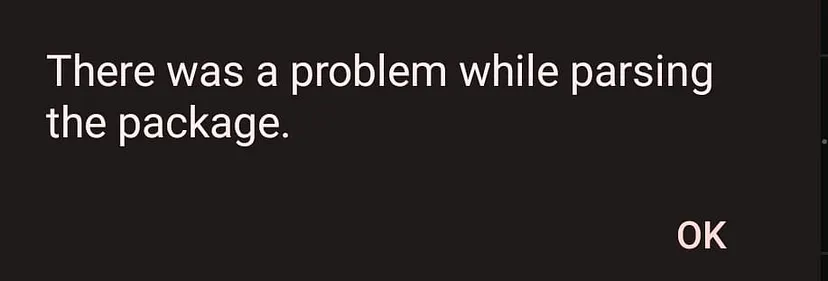
If we install the APK on Android 14 or above it works fine but not on lower versions. I have the full solution and it will solve the problem 100%.
Copy Paste This Settings:
Go to your UE Project Settings>Android
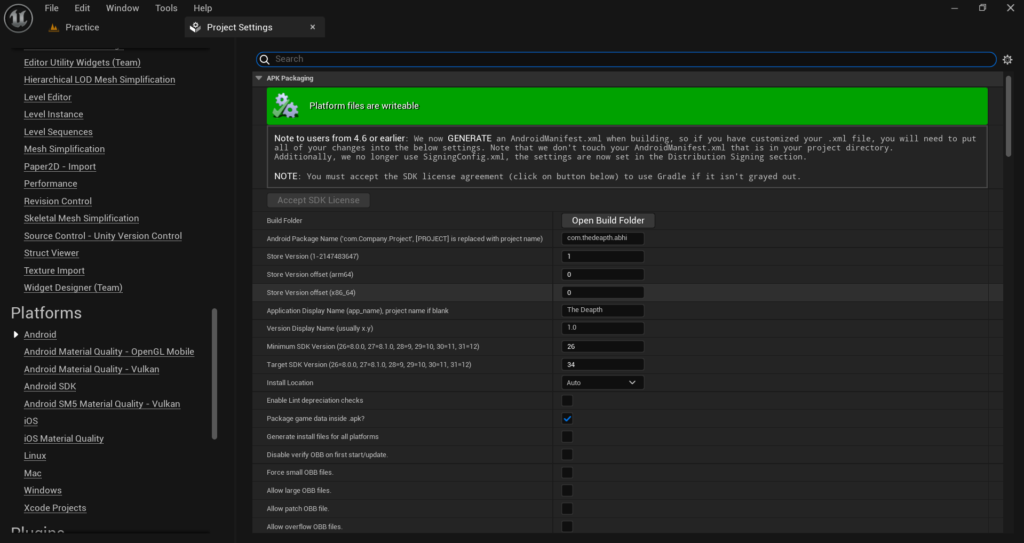
- Add the package name it should look like this: com.yourcompany.name (keep in mind there should be no capital letters in the package name otherwise it will give you an R Name Java Error during packaging).
- Also add the Application Display Name which is your game name.
- Set Minimum SDK value to 26 and Maximum SDK to 34 (make sure to use the same values).
- Tick the option Package game data inside APK.
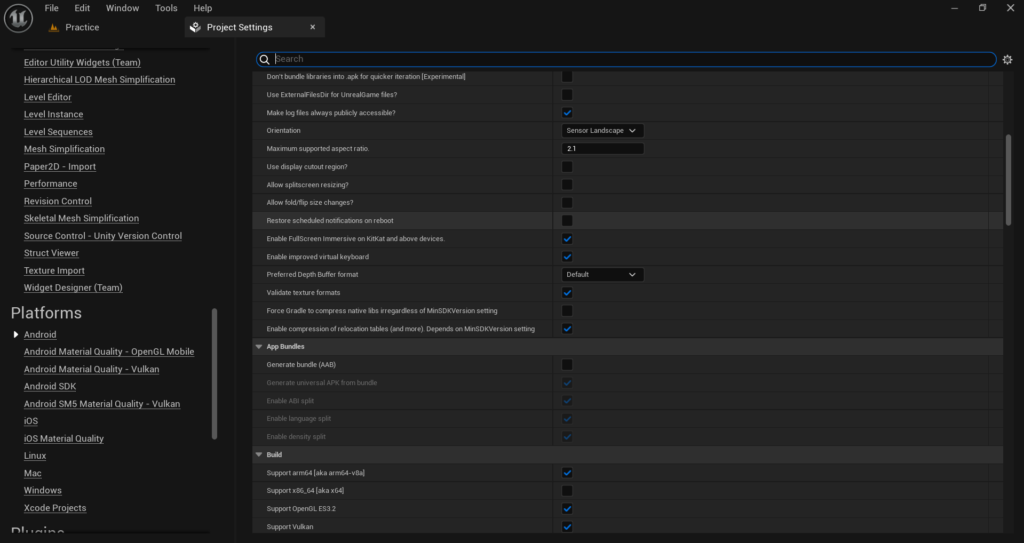
5. In the build tick all this three option of support Arm 64, Vulkan and Opengl
6. Search The Option in Project Settings [For Distribution (Tick It)]
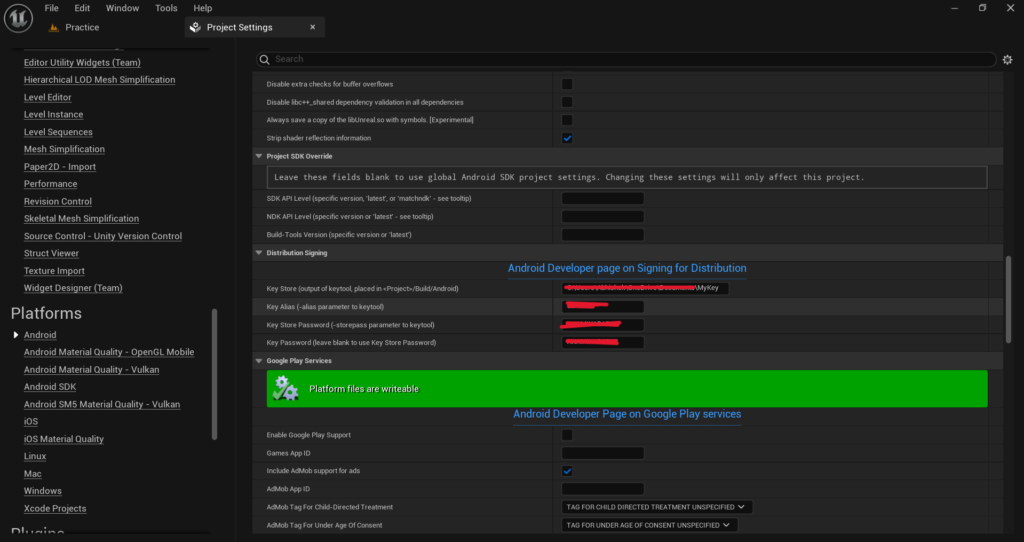
This step is very crucial. If you do not add your Distribution Signing Details, it will give you an error during packaging because any app store you publish on only allows signed apps. Unreal Engine will not package a game that is made for distribution without keystore details. Make sure you do not forget to add these details. Watch this video if you do not know how to make a keystore for your project. Video = Link
Configuration Of Android SDK Section Of Project Settings!
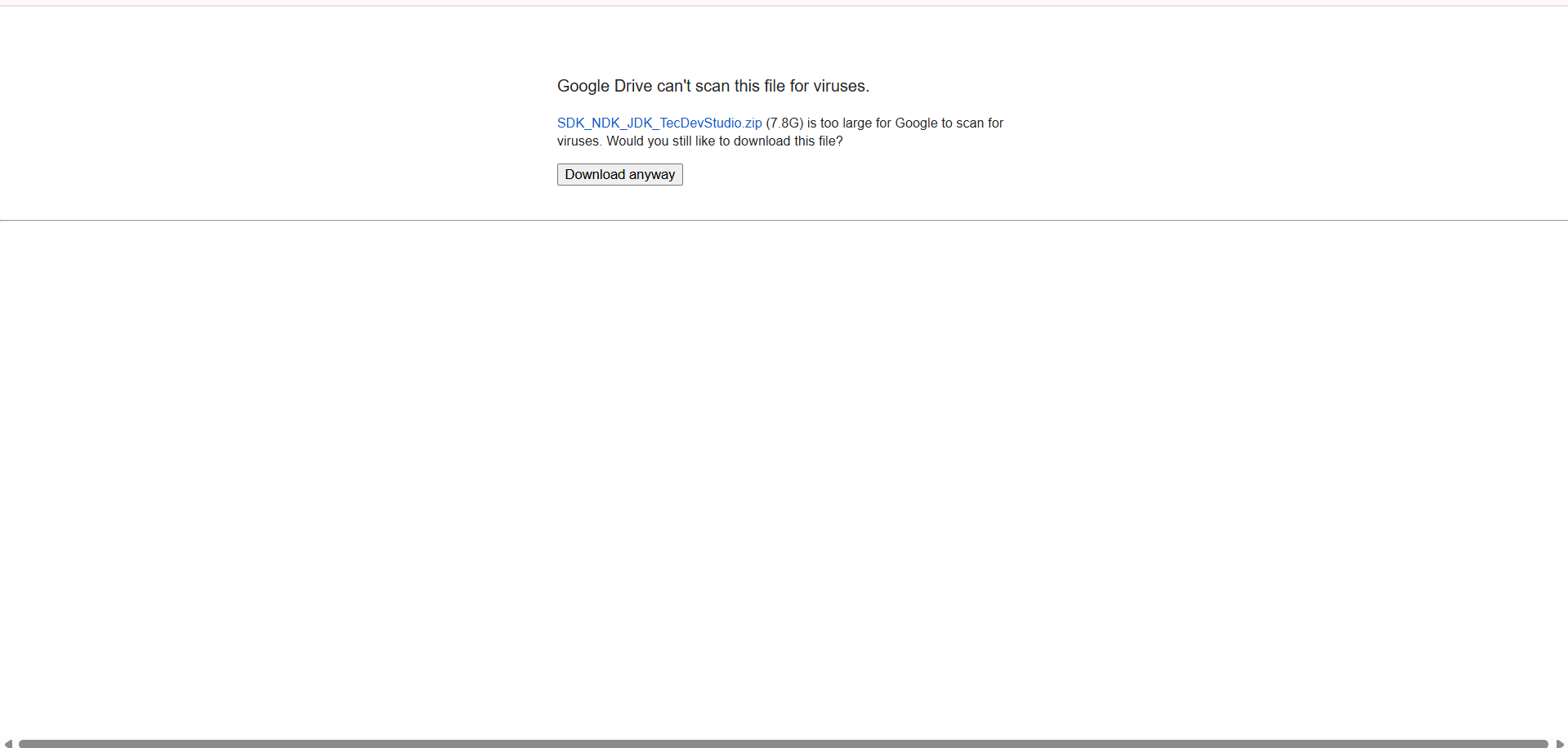
- First of all go to this link and Download file of something nearly 8Gb. File = Link
2. Extract that Zip File. [Zip Password = 10k_TecDevStudio]
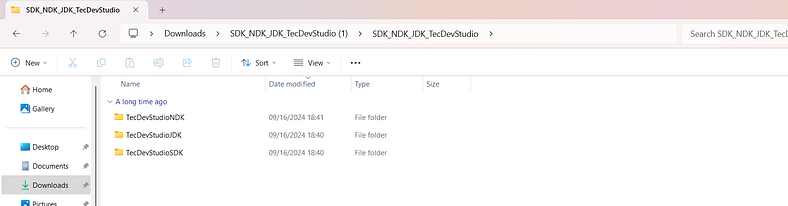
3. Open the folder and you will find three folders which are the SDK, NDK and JDK. Copy the path of all three folders one by one and paste them in Project Settings > Platforms > Android SDK as shown in the image.
Replace the Android Studio SDK, JDK and NDK paths with the new custom paths of your extracted zip file’s SDK, NDK and JDK folders.
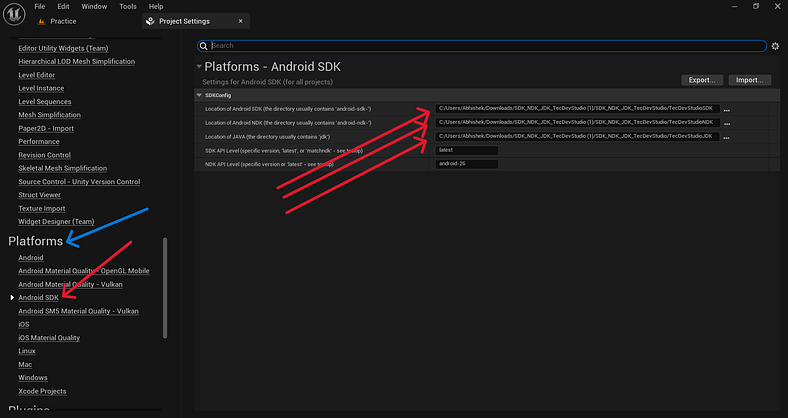
Note : When you copy the path from the Folders it gives you the path like this “C:\Users\Abhishek\Downloads\SDK_NDK_JDK_TecDevStudio (1)\SDK_NDK_JDK_TecDevStudio\TecDevStudioNDK”
Remove the comma from the path and then paste it in the respective SDK, JDK, NDK Directory Shown In the image.
Your SDK, JDK, NDK Path look same like mine without comma.
Final Step
Here is the improved version:
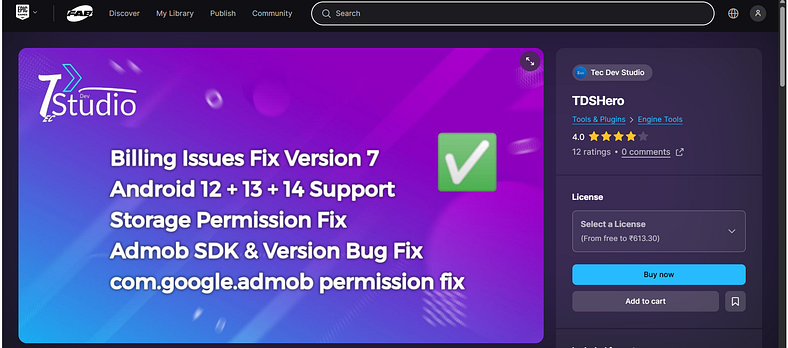
Go to fab.com and install this plugin in your project and enable it. After that you do not have to do anything else it will fix all your Android problems. Plugin = Link
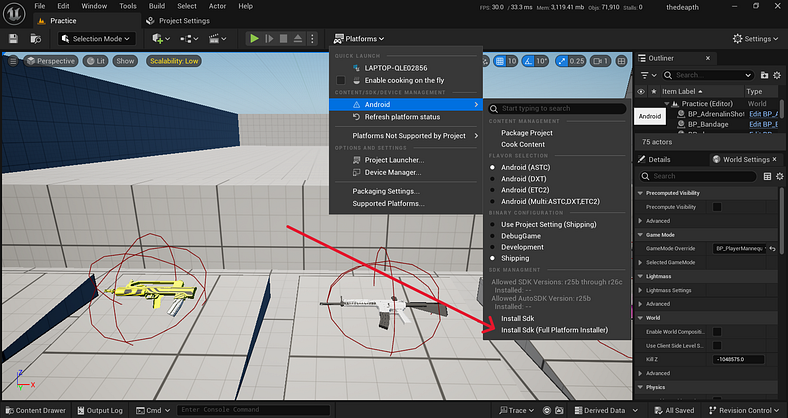
After all of this go to platforms>Android Click the Install SDK (Full Platform Installer) shown in the image and after it will say you to Restart your Project.
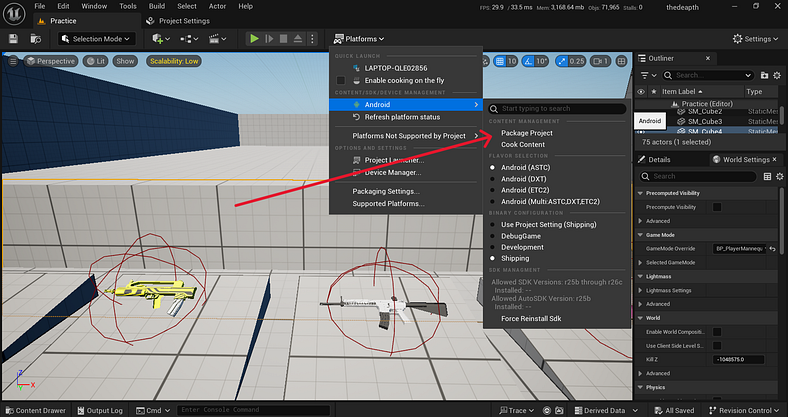
So After Restarting the Project Select Platforms>Android>Cook Content>ASTC>Shipping [First Try Too Cook The Project To Check The Errors If the cook is successful without errors] Select The Package Project With Same Settings. [Platforms>Android>Package Project>ASTC>Shipping]
Now Run Your Game App It Will 100% Work Without any Parsing Errors.
If You Need Any Help Regarding Android Development In Unreal Engine 4 & 5 Inform me Via This Email [Admin@KaliPress.fun] i Will definitely Help U!
Support Us If This Solved Your Problem
1. What does the error There was a problem parsing the package mean in Unreal Engine 5 Android?
This error appears when you try to install an APK file that was packaged from Unreal Engine 5 onto an Android device and the device fails to read or install it. It usually means the APK was not signed correctly or the Android SDK settings inside your Unreal Engine project are not configured properly. The good news is that this is a very common problem and it can be fixed by adjusting a few settings inside the Project Settings section of Unreal Engine.
2. Why does the APK install fine on Android 14 but give a parsing error on Android 13 and below?
This happens because newer Android versions like Android 14 and above are more lenient about certain package configurations while older versions ranging from Android 8 to Android 13 are much stricter. If your APK is not signed with a proper keystore or if the Minimum SDK and Maximum SDK values in your project settings are not set correctly then older Android versions will reject the APK and show the parsing error. Setting the Minimum SDK to 26 and the Maximum SDK to 34 inside your Unreal Engine Project Settings resolves this version compatibility issue.
3. What is the correct Minimum SDK and Maximum SDK value to set in Unreal Engine 5 for Android?
You should set the Minimum SDK value to 26 and the Maximum SDK value to 34 inside your Unreal Engine Project Settings under the Android section. These values ensure that your game is compatible with devices running Android 8 and above while also targeting the latest Android versions properly. Using incorrect SDK values is one of the most common causes of the parsing error on lower Android devices.
4. What is the correct format for the package name in Unreal Engine 5 Android settings?
The package name should follow this format: com.yourcompany.gamename. It is very important that you do not use any capital letters in the package name. If you use capital letters in the package name Unreal Engine will throw an R Name Java Error during the packaging process. Always keep the entire package name in lowercase letters to avoid this problem.
5. What does the Package game data inside APK option do and should I enable it?
The Package game data inside APK option bundles all of your game content directly inside the APK file itself instead of keeping it as a separate OBB file. You should enable this option by ticking it in the Android section of your Project Settings. This makes the installation process simpler and more reliable especially on older Android devices where external OBB data files can sometimes cause installation and parsing problems.
6. What is a keystore and why is it required for packaging an Android game in Unreal Engine 5?
A keystore is a digital certificate file that is used to sign your Android APK. Any app store you want to publish on including the Google Play Store only accepts signed APKs. Unreal Engine 5 will not successfully package a game that is set to distribution mode without valid keystore details. If you enable the For Distribution option but do not fill in your keystore information the packaging process will fail. You need to create a keystore file and then enter the keystore path store password key alias and key password in the Distribution Signing section of your Android Project Settings.
7. What does the For Distribution option mean in Unreal Engine 5 Android settings?
The For Distribution option tells Unreal Engine that you are building a release version of your game that is meant to be published or shared publicly. When this option is enabled UE5 requires you to sign the APK with a valid keystore. Without a keystore the packaging will fail when distribution mode is on. You should enable this option when you are ready to build your final APK for release but make sure your keystore details are correctly filled in before you do.
8. Which architecture should I select when packaging an Android game in Unreal Engine 5?
You should enable Support for ARM 64 in the build settings of your Android Project Settings. ARM 64 is the architecture used by almost all modern Android devices. Along with ARM 64 you should also tick both Vulkan and OpenGL ES support so that your game can run on a wide range of devices. Devices that support Vulkan will use it for better performance and devices that do not support Vulkan will fall back to OpenGL ES automatically.
9. What is the Android SDK and why does Unreal Engine 5 need it?
The Android SDK stands for Android Software Development Kit and it is a collection of tools and libraries that Unreal Engine needs in order to compile and package your game for Android devices. Without a properly configured SDK Unreal Engine cannot build an Android APK. You need to set the correct paths for the SDK as well as the NDK which stands for Native Development Kit and the JDK which stands for Java Development Kit inside the Android SDK section of your Project Settings.
10. What is the NDK and JDK and how are they different from the SDK?
The SDK is the Android Software Development Kit that contains the core build tools. The NDK which stands for Native Development Kit is used to compile C++ code which Unreal Engine heavily relies on. The JDK which stands for Java Development Kit is needed because Android build tools use Java internally. All three of these tools need to be installed and their correct folder paths need to be entered in the Android SDK section of Unreal Engine Project Settings. Using mismatched or incorrect versions of these tools is a very common cause of packaging failures.
11. Why should I use a custom SDK NDK and JDK instead of the one installed with Android Studio?
The SDK NDK and JDK versions that come bundled with Android Studio are often not the exact versions that Unreal Engine 5 requires. Using incompatible versions causes build errors and packaging failures. A custom preconfigured SDK NDK and JDK package that is matched to Unreal Engine 5 requirements ensures that all three tools work together without version conflicts. This is why replacing the Android Studio default paths with the correct custom paths in your Project Settings resolves many Android packaging problems including the parsing error.
12. What texture format should I select when packaging an Android game in Unreal Engine 5?
You should select ASTC as the texture compression format when packaging your Android game in Unreal Engine 5. ASTC stands for Adaptive Scalable Texture Compression and it is supported by the vast majority of modern Android devices. When you go to Platforms then Android and choose Package Project or Cook Content you should select ASTC from the format options. This ensures the best compatibility and performance across different Android hardware.
13. Should I use Shipping or Development mode when packaging my final Android APK in Unreal Engine 5?
You should use Shipping mode when building your final APK. Shipping mode removes all debug information logging and development tools from the build which results in a smaller file size and better performance. Development mode is useful when you are still testing your game because it allows you to see debug messages and connect to live debugging tools. But for your final release APK that you want to share or publish always use Shipping mode to get the best version of your game.
14. What is the Install SDK option in Unreal Engine 5 and when should I use it?
The Install SDK option also called the Full Platform Installer is found inside Platforms then Android in the Unreal Engine editor. It automatically installs all the necessary Android platform support components that Unreal Engine needs to build Android games. You should click this option after you have set up your custom SDK NDK and JDK paths. After the installation is complete Unreal Engine will ask you to restart your project and after restarting your Android build environment will be fully set up and ready.
15. Why should I cook the project first before packaging the final APK?
Cooking the project first is a very important step because it processes and compiles all the content in your game including textures sounds blueprints and levels into the format that Android devices need. If there are any errors in your content they will show up during the cook process. It is much better to catch and fix these errors during cooking than to wait for the full packaging process to fail. Once the cook completes successfully without any errors you can be much more confident that the full packaging will also succeed.
16. What is the R Name Java Error in Unreal Engine 5 Android and how do I fix it?
The R Name Java Error occurs during the packaging process when your Android package name contains capital letters or special characters. Android requires that package names use only lowercase letters numbers and dots in the format com.yourcompany.gamename. If you accidentally used any uppercase letters in your package name you need to go to Project Settings then Android and correct the package name to use only lowercase characters. After making this change try packaging your project again and the error should be resolved.
17. Can I fix the Android parsing error in Unreal Engine 5 without reinstalling Android Studio?
Yes you can fix the parsing error without reinstalling Android Studio. The solution involves downloading a preconfigured SDK NDK and JDK package that is compatible with Unreal Engine 5 and then replacing the existing SDK paths in your Project Settings with the new paths from this custom package. You also need to make sure your package name is in lowercase your SDK values are set correctly you have a valid keystore configured and the game data is set to be packaged inside the APK. Following all of these steps will resolve the parsing error without needing to reinstall Android Studio.
18. What plugin can help fix Android problems in Unreal Engine 5?
There is a plugin available on fab.com that is specifically designed to fix Android related problems in Unreal Engine 5. You can find it by searching on the Fab marketplace. Once you install the plugin in your project and enable it inside the Plugins section of Unreal Engine it automatically handles many of the common Android compatibility issues. After enabling the plugin you should then go to Platforms then Android and run the Install SDK option to complete the setup and then restart your project.
19. Does the There was a problem parsing the package error affect all Android devices or only specific ones?
This error typically affects Android devices running Android 8 through Android 13 while devices running Android 14 and above are usually able to install the APK without this error. This is because older Android versions enforce stricter rules about APK signing and package configuration. Once you fix the project settings by setting the correct SDK values adding proper keystore signing details and using the correct package name format the APK will install and run correctly on all Android versions from Android 8 and above.
20. What is the full step by step process to fix the parsing error when packaging an Android game in Unreal Engine 5?
The full process to fix the parsing error is as follows. First go to Project Settings then Android and set your package name in lowercase format like com.yourcompany.gamename. Add your Application Display Name which is your game name. Set Minimum SDK to 26 and Maximum SDK to 34. Enable the Package game data inside APK option. In the build section enable Support ARM 64 as well as Vulkan and OpenGL ES. Enable the For Distribution option and fill in your keystore path and password details. Next go to the Android SDK section and replace the SDK NDK and JDK paths with paths from a custom preconfigured package that matches UE5 requirements. Then install the Android plugin from fab.com and enable it. After that go to Platforms then Android and run the Install SDK Full Platform Installer option. Restart your project. Finally go to Platforms then Android and cook your content first using ASTC and Shipping mode. Once cooking succeeds package the project using the same ASTC and Shipping settings. Your APK will now install and run without any parsing errors on all supported Android devices.

Solo Indie Game Developer and Unreal Engine (UE4 & UE5) Specialist with over 5 years of experience building optimized Android games from scratch.
I specialize in handling the full development pipeline independently taking mobile titles from concept to high-performance, publishing ready APK/AAB builds. Highly focused on rendering optimization for low-to-mid range devices, Blueprint scripting, and custom mechanics.
Through this blog, I share my practical knowledge and tutorials to help aspiring developers master the Unreal Engine mobile ecosystem.

3 Comments