
Create a Save/Load System in Unreal Engine 5
Imagine this your player has just crossed level 10 after 45 minutes of hard work. They close the game go to sleep and open it the next morning. And then level 1. Everything reset. All progress gone.
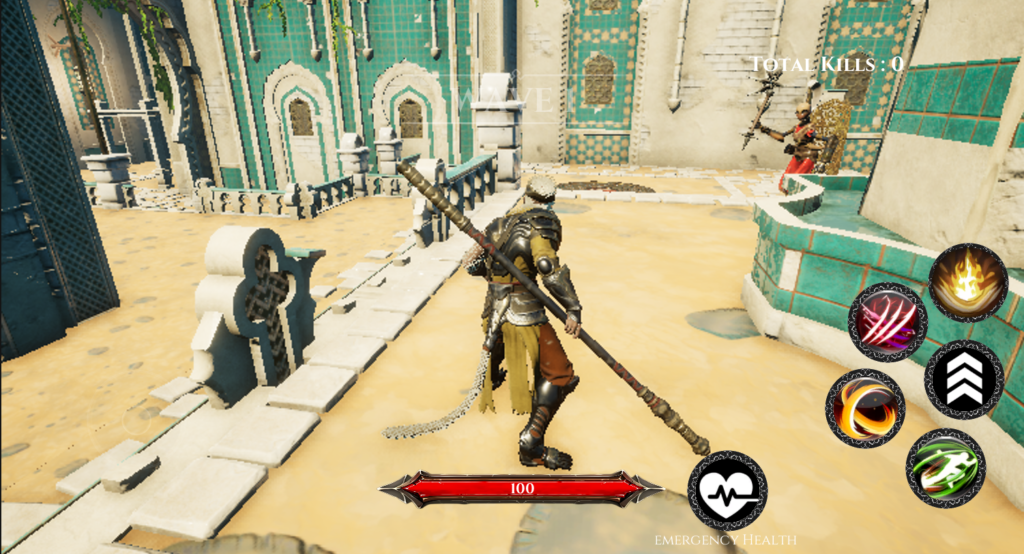
Losing all your progress just because you closed the game is one of the worst things a player can experience. And it happens more often than it should because most new Unreal Engine Android developers skip setting up a save system entirely.
The good news is that Unreal Engine 5 has a built-in SaveGame class that handles all of this for you. It saves your data to the Android device’s local storage automatically and securely and the best part is that you do not need any extra permissions for it. No READ_EXTERNAL_STORAGE no WRITE_EXTERNAL_STORAGE. Nothing extra.
In this article we will build a complete Save and Load system using only Blueprint nodes no C++, no plugins, no complicated setup. Let’s get started.
Step 1: Creating the SaveGame Object
The first thing we need is a SaveGame Blueprint. Think of this as a container a box where all your player’s data will be stored like their coins, current level, high score, and so on.
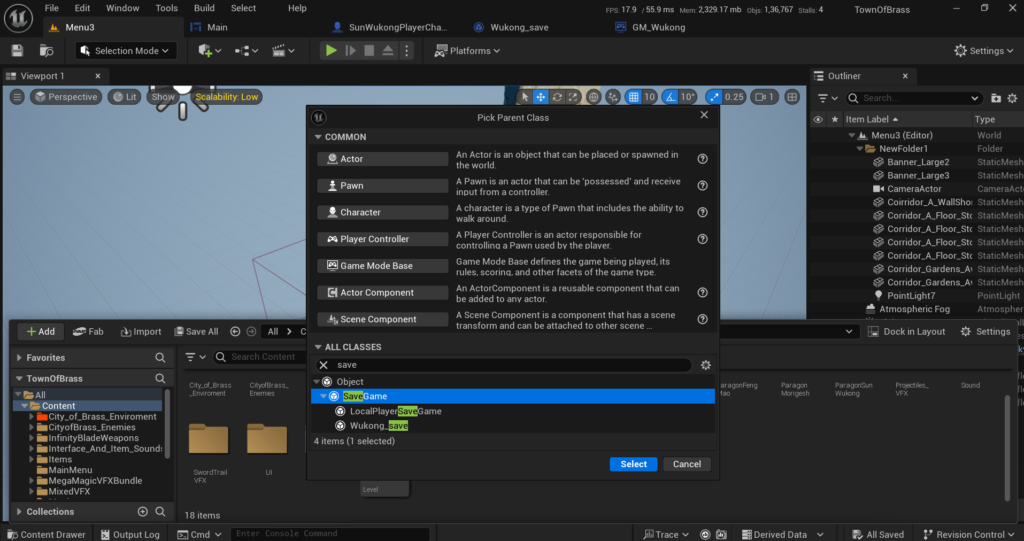
How to create it: Go to the Content Drawer in Unreal Engine. Right-click in an empty area and select Blueprint Class. A search box will appear. Type SaveGame and select it from the list. Name this new Blueprint BP_MySaveGame.
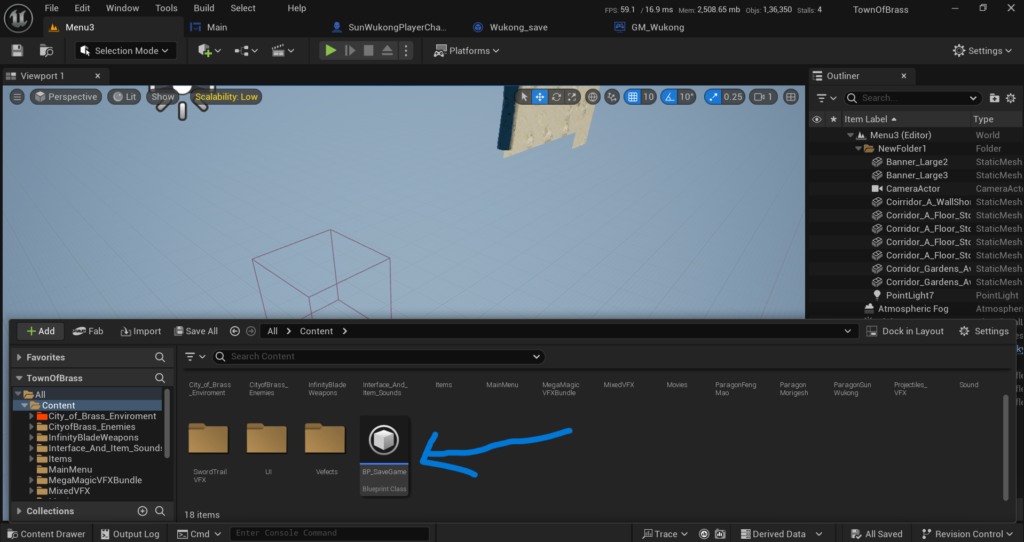
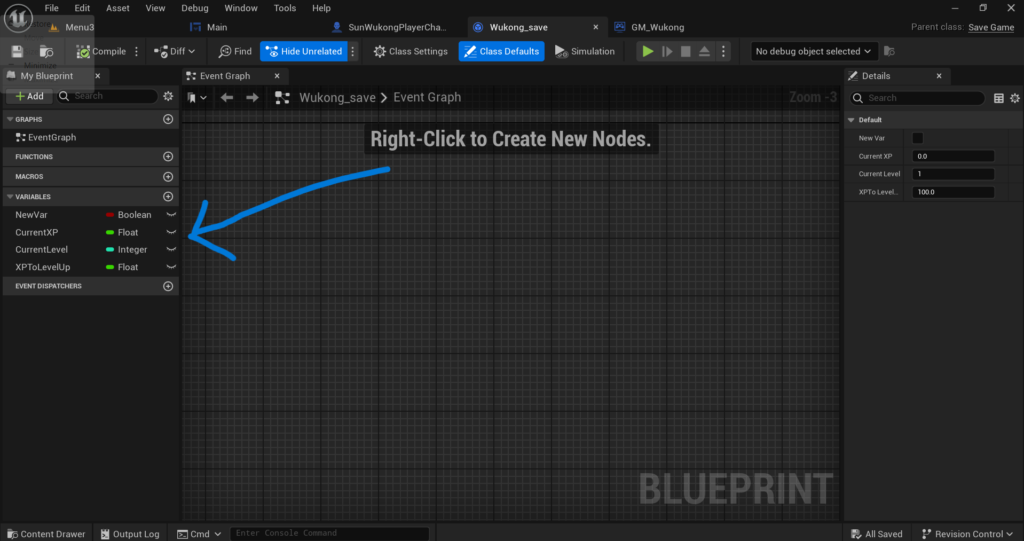
Adding Variables: Now open BP_MySaveGame and add the variables you want to save. For this guide we will add two:
- TotalCoins – Type: Integer (this stores how many coins the player has collected)
- CurrentLevel – Type: Integer (this stores which level the player is on)
To add a variable click the + Variable button in the left panel, give it a name, and set its type to Integer from the dropdown. Once done compile and save the Blueprint. Don’t worry in this Image the Variables are different because i uploaded my Save Game Bp Screenshot.
Step 2: The Save Logic
Now we will create the logic that actually saves the player’s data. This is what runs when the player collects a coin or completes a level.
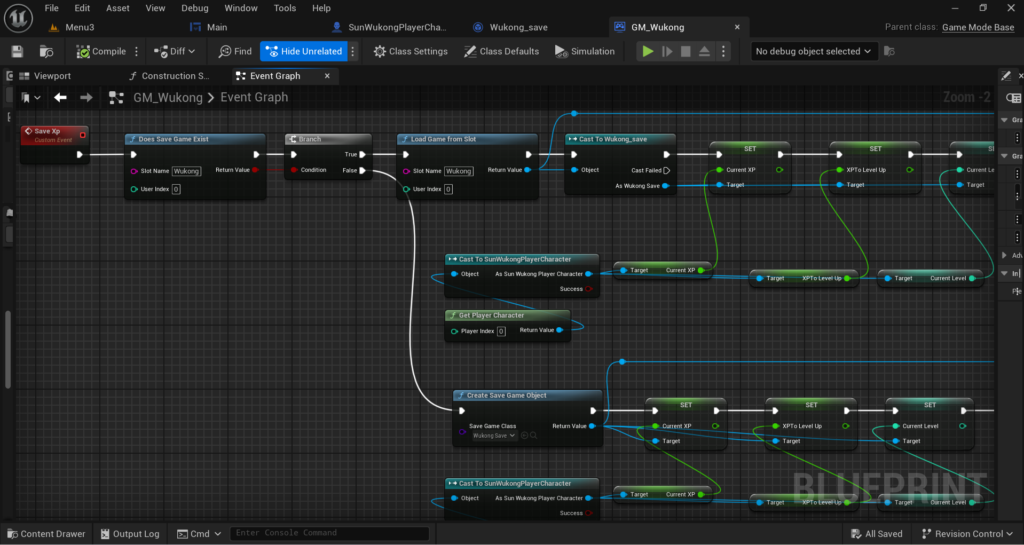
Where to put this logic: You can put the save logic in your Player Blueprint or your Game Mode Blueprint whichever makes more sense for your project. Open it and create a new custom Event called SaveGame.
Blueprint nodes to use (in order)
- 1. Create Save Game Object – In the Save Game Class pin select BP_MySaveGame.
- 2. Cast to BP_MySaveGame – Connect the Return Value from the previous node into the Object pin here.
- 3. From the Cast output drag out and Set TotalCoins and Set CurrentLevel give them the current values from your player.
- 4. Save Game to Slot – Connect the Save Game Object pin to your cast output. Set the Slot Name to “SaveSlot1” and User Index to 0.
When should you call this?
- When the player collects a coin.
- When the player completes a level.
- When the player pauses the game or goes back to the main menu.
Step 3: The Load Logic On Startup
Saving data is only half the work. We also need to load that data back when the game starts. This way the player’s coins and level are restored exactly as they left them. This logic should run on Event BeginPlay in your Game Mode or Player Blueprint.
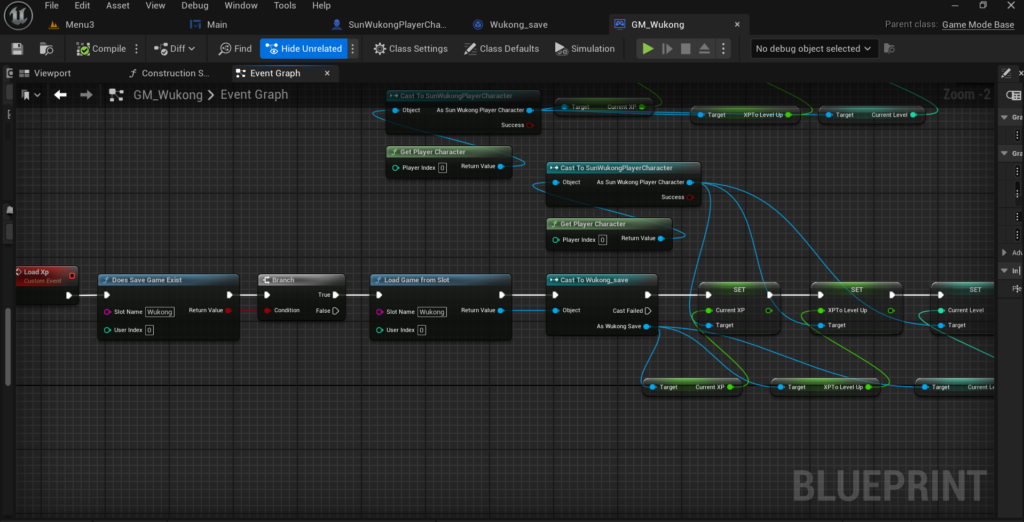
Blueprint nodes to use (in order):
- Event BeginPlay This is your starting point. It fires automatically when the game opens.
- Does Save Game Exist Set Slot Name to “SaveSlot1“. This checks if the player has saved data or if they are playing for the first time.
- Connect the True output to Load Game from Slot again use Slot Name “SaveSlot1” and User Index 0.
- Cast to BP_MySaveGame Connect the Return Value from Load Game from Slot into the Object pin.
- From the Cast output, drag out Get TotalCoins and Get CurrentLevel and use these values to update your player’s stats and UI.
What about the False branch?
If Does Save Game Exist returns False it means this is a fresh install and there is no save data yet. In that case just set your default values like Coins = 0 and Level = 1. You can connect the False pin to a Set node with default values.
Pro Tip for Android Developers: No Permissions Needed. A lot of new Android developers get scared at this point. They think “Do I need to ask the user for storage permissions? Will the Google Play Store reject my app?” The answer is no. From experience publishing Android games UE5’s SaveGame system automatically saves data inside the app’s own internal secure folder on the device.
This is a private folder that only your app can access. You do NOT need to add READ_EXTERNAL_STORAGE or WRITE_EXTERNAL_STORAGE permissions to your Android manifest. UE5 handles all of this internally and saves directly to the app’s sandboxed storage which means no permission popups for your players and no issues with Google Play policies.
This is something that many developers only discover after going through a lot of trial and error. Now you know it from the start.
Conclusion
Congratulations your game can now permanently save and load player progress. Your players will never lose their coins or levels again no matter how many times they close and reopen the game.
If you have any questions about this guide, feel free to reach out at Admin@KaliPress.fun and I will be happy to help.

Solo Indie Game Developer and Unreal Engine (UE4 & UE5) Specialist with over 5 years of experience building optimized Android games from scratch.
I specialize in handling the full development pipeline independently taking mobile titles from concept to high-performance, publishing ready APK/AAB builds. Highly focused on rendering optimization for low-to-mid range devices, Blueprint scripting, and custom mechanics.
Through this blog, I share my practical knowledge and tutorials to help aspiring developers master the Unreal Engine mobile ecosystem.




2 Comments