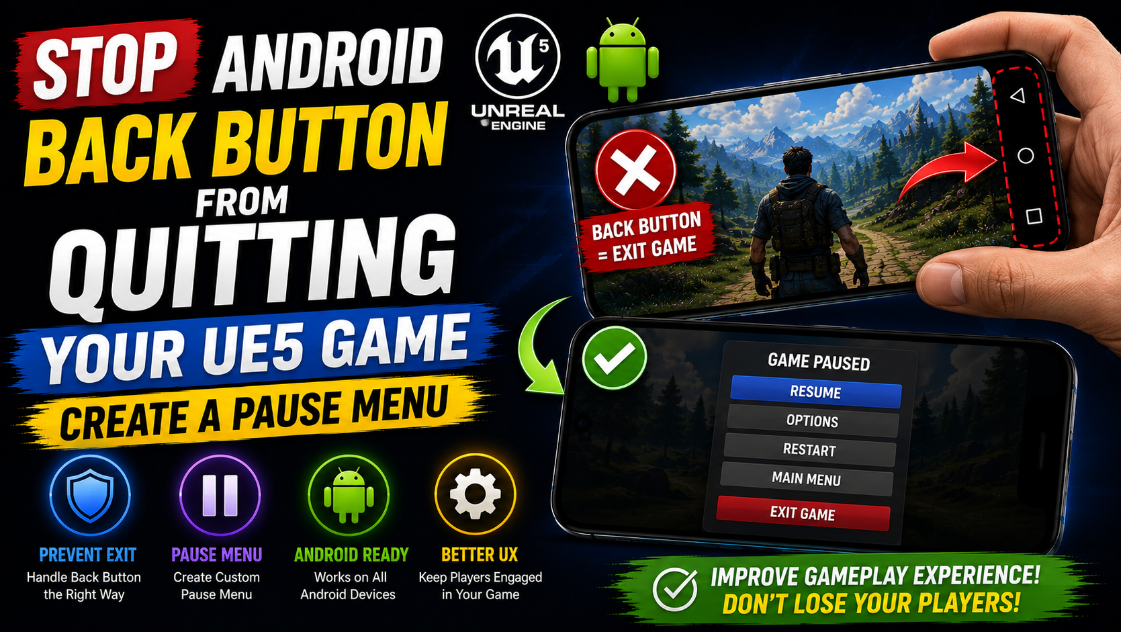
Stop Android Back Button from Quitting Your UE5 Game: Create a Pause Menu
Picture this. Your player is 10 minutes into a run, they are doing great, and then they accidentally graze the Android back button. The game closes. Everything is gone. They open the Play Store and leave you a one star review.
This happens more than you think and it is completely preventable. The Android back button quits your UE5 game by default and fixing this is something every Android game developer needs to do before publishing. In this article I will show you how to intercept that back button and replace the default quit behavior with a proper pause menu that gives your players real options.
What Is Actually Happening
Android treats the back button as a system navigation control. When a player presses it Android tells the current app to go back one step. In a game where there is no previous screen to go back to Android decides the logical thing to do is close the app.
UE5 does not fight this behavior by default. It receives the quit signal and closes immediately. Your player gets no warning, no confirmation and no chance to save their progress.
The fix is to catch that signal in Blueprint before UE5 acts on it and replace it with your own logic.
Step 1: Intercept the Back Button in Your Player Controller
Open your Player Controller Blueprint. If you do not have a custom one go to the Content Drawer, right click, select Blueprint Class and search for Player Controller. Name it BP_MyPlayerController and assign it in Edit > Project Settings > Project > Maps and Modes as your default Player Controller.
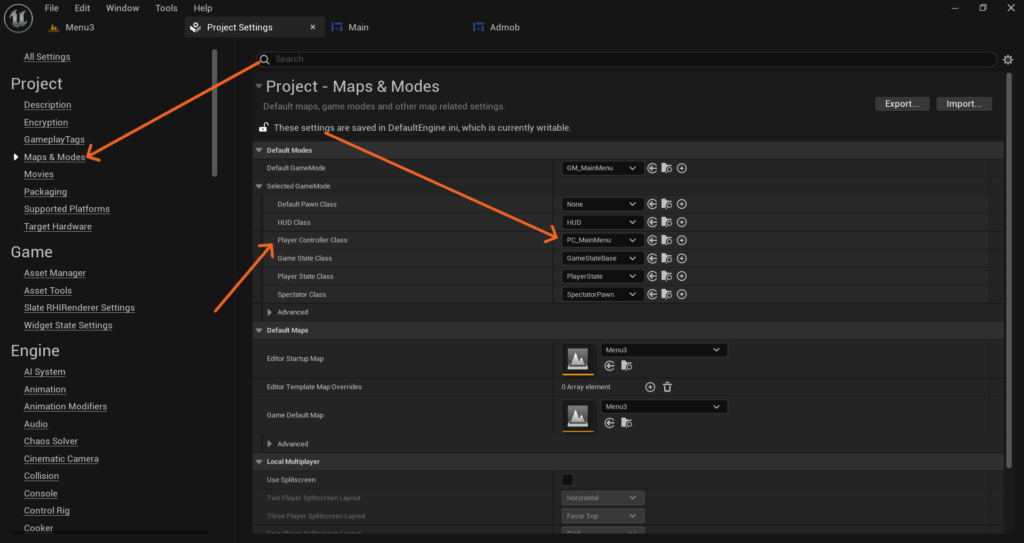
Inside BP_MyPlayerController go to the Event Graph. Right click and search for Android Back under the Mobile input section. Add this event to your graph.
Here is something important to understand. The moment you add this event node and connect anything to it UE5 stops passing the back button signal to Android’s default handler. The game will no longer quit automatically. You have full control now.
Step 2: Design the Pause Menu Widget
Go to the Content Drawer, right click and go to User Interface > Widget Blueprint. Name it WBP_PauseMenu. Open it and build your pause menu. You need four things inside it.
A full screen semi-transparent dark background so the player can see the game is paused behind the menu. Add an Image or Border widget set to fill the full canvas with a dark color at around 70 percent opacity.
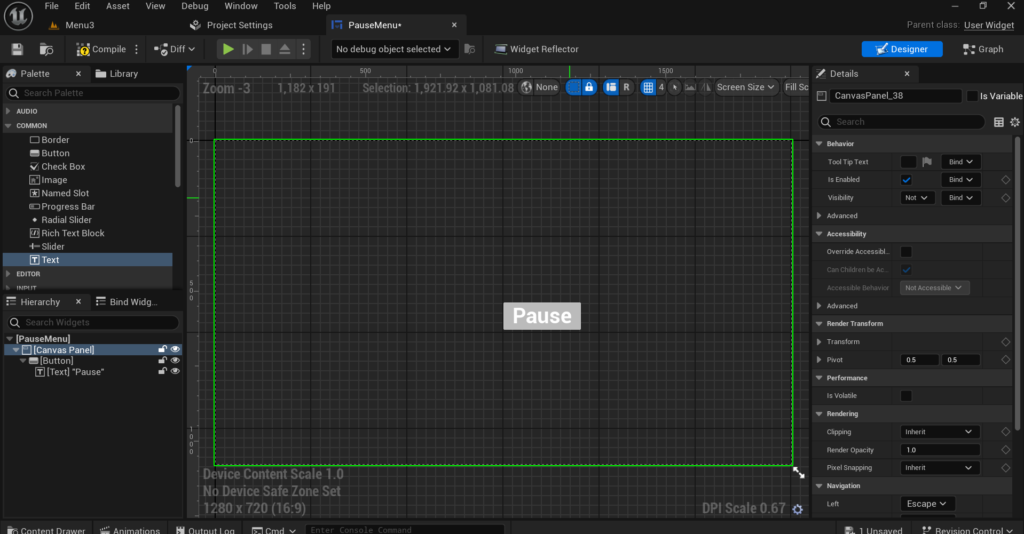
A Paused title text at the top center so the player immediately knows what screen they are on.
Three buttons with enough size to tap comfortably on mobile. A minimum height of 80 to 100 pixels per button works well. Label them Resume, Restart and Quit.
Make sure the buttons have enough spacing between them. On mobile screens fingers are not precise and cramped buttons lead to accidental taps.
Step 3: Wire Up the Resume Button
In WBP_PauseMenu go to the Graph tab. Create the On Clicked event for your Resume button.
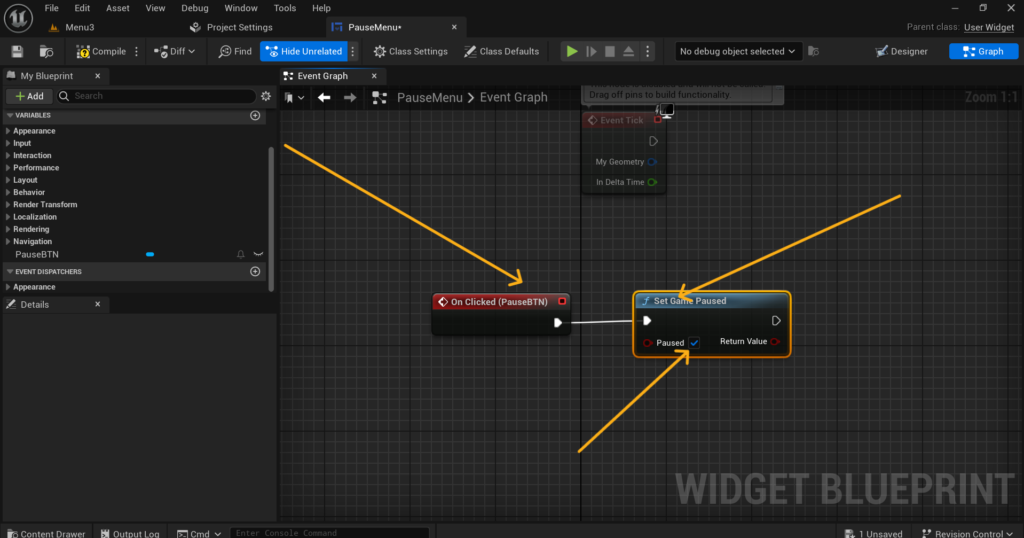
From this event do three things. Call Set Game Paused with the Paused checkbox unchecked to unfreeze the game. Call Remove from Parent on the widget to close the menu. Call Get Player Controller and from it call Set Input Mode Game Only to return full control to the player and hide the cursor.
Step 4: Wire Up the Restart Button
Create the On Clicked event for the Restart button. From this event call Set Game Paused with Paused unchecked first. Then call Open Level by Name and use Get Current Level Name to pass in the current level dynamically. This reloads the level without you needing to hardcode any level names.
Step 5: Wire Up the Quit Button
Create the On Clicked event for the Quit button. From this event call Quit Game. This closes the application properly through UE5 rather than Android force killing it.
A good addition here is a small confirmation step. Instead of quitting immediately show a small dialog asking the player if they are sure. Two small buttons, Yes and No is all you need. This prevents players from rage-quitting accidentally and then blaming the game for it.
Step 6: Connect the Back Button to the Pause Menu
Go back to BP_MyPlayerController and the Android Back event you added in Step 1. First check whether the game is already paused. Add an Is Game Paused node. Connect its return value into a Branch node.
If False meaning the game is running normally connect it to your pause logic. Create WBP_PauseMenu using Create Widget and call Add to Viewport with a Z-Order of 10 so it sits above all other UI. Then call Set Game Paused with Paused checked. Call Get Player Controller and set the input mode to UI Only and enable Show Mouse Cursor so the player can interact with the menu buttons.
If True meaning the game is already paused connect it to your resume logic. Call Set Game Paused with Paused unchecked. Get the WBP_PauseMenu instance and call Remove from Parent. Set the input mode back to Game Only and hide the cursor.
Now the back button works as a toggle. First press opens the pause menu. Second press closes it and resumes the game. This is natural behavior that players expect.
Step 7: Handle Audio When Pausing
Set Game Paused freezes game logic, physics and timers but it does not automatically pause audio. If your game has background music or sound effects still playing while the pause menu is open it breaks the immersion.
When your pause logic runs after calling Set Game Paused get your background music Audio Component and call Pause on it. When your resume logic runs call Play on the same component to bring it back.
If you have multiple sounds playing you can also use Set Global Pitch Modulation and set it to 0.0001 to effectively silence everything at once. Reset it to 1.0 when resuming.
Step 8: Handle the Back Button in the Main Menu
Your main menu needs different back button behavior. You do not want the game silently closing from the main menu either.
In your main menu Widget Blueprint override the On Key Down function. Inside it check if the pressed key is Android Back. If it is show a quit confirmation dialog asking the player if they want to exit the game. Return Handled from the function so UE5 does not process the key press any further.
This gives your entire game consistent behavior. The back button never silently closes the app from anywhere.
Step 9: Add a Pause Button to Your HUD
Many players do not think to use the back button for pausing. A visible pause button in your HUD makes the feature discoverable.
In your in-game HUD Widget Blueprint add a small button in the top corner with a pause icon. On its On Clicked event call Get Player Controller, cast it to BP_MyPlayerController and call a custom event you create there called TogglePause.
Put all your pause and resume logic inside TogglePause in the Player Controller. Both the back button event and the HUD pause button call this same custom event. This way your pause logic lives in one place and you only ever need to update it once if anything changes.
Step 10: Test Everything on a Real Device
The editor does not have an Android back button so this feature must be tested on a real device. Build a signed APK and install it manually. During gameplay press the back button and confirm the pause menu opens correctly. Tap Resume and confirm the game continues exactly where it left off with no input issues. Tap Restart and confirm the level reloads cleanly. Tap Quit and confirm the app closes properly.
Press the back button rapidly multiple times to make sure multiple pause menu instances do not stack on top of each other. The Is Game Paused check in Step 6 prevents this but always verify it with a real device.
Go to your main menu and press back. Confirm the quit confirmation dialog appears and that the game does not close silently.
Final Thoughts
A game that closes without warning when the back button is tapped is a game that gets bad reviews. Players lose progress, get frustrated and do not come back. Fixing this takes a couple of hours of Blueprint work and the result is a much more polished experience for everyone who plays your game.
The system built in this article gives players full control. They can resume, restart or quit intentionally. That is how a real published game should behave and there is no reason yours should be any different.
If anything is not working the way it should on your device reach out at Admin@KaliPress.fun and I will help you figure out what is going wrong.

Solo Indie Game Developer and Unreal Engine (UE4 & UE5) Specialist with over 5 years of experience building optimized Android games from scratch.
I specialize in handling the full development pipeline independently taking mobile titles from concept to high-performance, publishing ready APK/AAB builds. Highly focused on rendering optimization for low-to-mid range devices, Blueprint scripting, and custom mechanics.
Through this blog, I share my practical knowledge and tutorials to help aspiring developers master the Unreal Engine mobile ecosystem.