Fix Google Play Console Rejections for UE5 Games: Data Safety & SDK Policies
Spending months building a game in UE5 and then getting a rejection email from Google Play right before launch is one of the worst feelings as a developer. Most of the time the rejection has nothing to do with your gameplay or your code quality. It is almost always a policy or compliance issue that has a clear fix once you know what Google is actually looking for.
This article covers the three things that cause the most Play Console rejections for UE5 Android games. The Data Safety section, target API level requirements and third party SDK declarations. Get these right before you submit and you save yourself days of back and forth with Google’s review team.
Why UE5 Games Get Rejected More Often Than You Expect
UE5 games tend to run into more rejections than simple Android apps because a typical game uses several third party SDKs at once. AdMob for ads, Google Play Games Services for leaderboards, Firebase for analytics and possibly a few other plugins from Fab or the Marketplace. Every one of these SDKs collects some form of data and Google requires you to disclose every single one of them accurately.
Most rejections happen because the developer fills out the Data Safety form based on guesswork instead of checking what each SDK actually collects. Google compares your declaration against what your app’s network traffic and permissions actually show. If there is a mismatch you get flagged.
Understanding the Data Safety Section
Google Play’s Data Safety section is a way for developers to show users if and how they collect, share and protect user data before someone installs the app. Every developer must complete a clear and accurate Data Safety section for every app and is responsible for keeping it accurate and up to date.
This is not optional even if you think your game collects nothing. There is no way to skip the section entirely, you must still confirm whether your app or any SDK it uses collects data.
Here is the part that catches most UE5 developers off guard. Your app must post a privacy policy link both in the designated field in Play Console and somewhere inside the app itself, and this policy must comprehensively disclose any access, collection, use or sharing of personal data, not just what you put in the Data Safety form. If you skip adding a privacy policy link inside your actual game UI, not just in your Play Store listing, you can get rejected even with a perfect Data Safety form.
Step 1: Identify Every SDK Your Game Actually Uses
Before touching the Data Safety form go through your project and list every plugin and SDK that sends data off the device. For a typical UE5 Android game this usually includes:
- AdMob if you are showing ads through Bansh Ads plugin or the manual integration.
- Google Play Games Services if you set up login and leaderboards.
- Any analytics plugin if you added one for tracking player behavior.
- Firebase if you are using it for crash reporting or analytics.
- Any third party plugin from Fab that connects to an external server for any reason.
Each of these collects different data types. AdMob collects advertising ID and device information for ad targeting. Play Games Services collects the player’s Google account ID. Analytics SDKs typically collect device identifiers and usage data. You need to know exactly what each one collects because the Data Safety form asks about this in detail.
Step 2: Fill Out the Data Safety Form Accurately
Log into the Google Play Console, open your app and go to App content > Data safety.
The form walks you through several categories of data. For most UE5 games using AdMob and Play Games Services you will need to declare at minimum: Device or other IDs because AdMob and Play Games Services both use advertising identifiers and account identifiers. As of an April 2025 policy update Android ID is explicitly classified as a device identifier that must be declared under this category.
App activity if you have any analytics tracking gameplay events. Approximate or precise location only if you are actually requesting location permissions, which most games do not need.
For each data type you declare you also need to specify whether it is collected, whether it is shared with third parties and why it is collected. For AdMob this is typically Advertising or marketing purposes. For Play Games Services this is typically App functionality.
Even if you believe your game collects very little data the threshold for declaring it is low. If anything is transmitted off the device it counts and must be disclosed. This means even a basic analytics ping back to a server counts.
Take your time on this form. Rushing through it with default or guessed answers is the single biggest cause of later policy strikes once Google’s automated systems detect a mismatch between your declaration and your app’s actual behavior.
Step 3: Add a Privacy Policy Properly
Go to App content > Privacy policy in Play Console and add your privacy policy URL. This URL must be active, publicly accessible, not geofenced and not a PDF file. A simple webpage works fine.
If you do not already have a privacy policy you can use one of the many free privacy policy generators available online and customize it to mention the specific SDKs your game uses. Make sure it specifically mentions AdMob, Google Play Games Services and any other SDK you have integrated since a generic template that does not match your actual app can also cause issues during review.
Then inside your actual game add a way for players to view this same privacy policy. A simple button in your settings menu labeled Privacy Policy that opens the URL using Launch URL in Blueprint satisfies this requirement.
Step 4: Meet the Target API Level Requirement
This is one of the most common reasons UE5 games specifically get blocked from publishing, because UE5’s default project settings often lag behind the latest Android requirements and developers do not realize they need to update this manually.
As of August 31, 2026 all new apps and app updates submitted to Google Play must target Android 16, API level 36, or higher. The only exceptions to this are Wear OS, Android Automotive OS and Android TV apps, which need to target Android 14, API level 34, or higher.
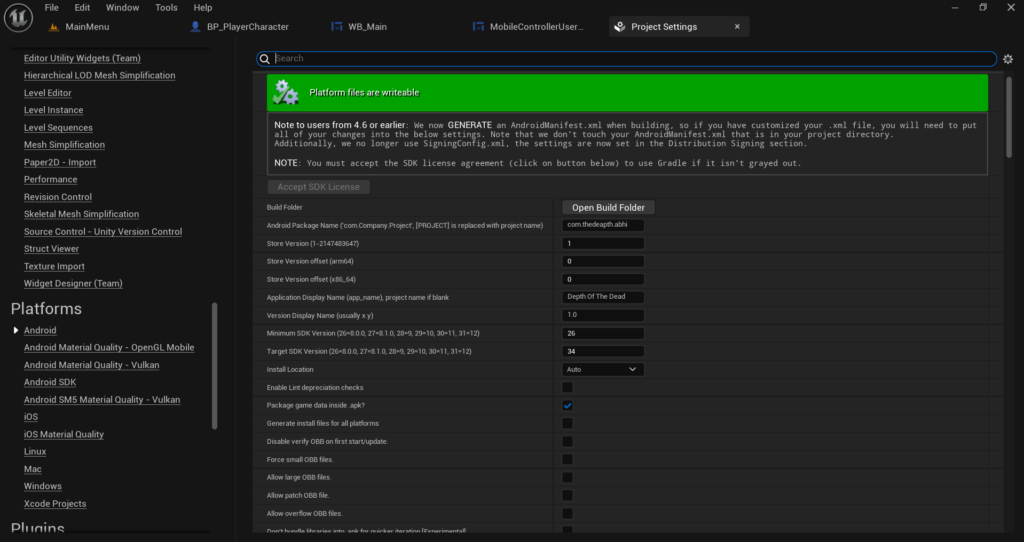
To check and update your target API level in UE5 go to Edit > Project Settings > Platforms > Android and find the APK Packaging section. Look for Target SDK Version and make sure it matches the current requirement. If your UE5 version does not have an option that goes high enough you may need to update your engine version since older UE5 releases do not support the newest Android SDK levels out of the box.
Also check Min SDK Version in the same section. This should generally be set low enough to support a wide range of devices, typically API level 26 or so, but your Target SDK Version is the one Google actually enforces for store submission.
If you submit a build with an outdated target API level Play Console will block the submission outright with a clear error message telling you the exact API level required. This is one of the easier rejections to fix since Google tells you exactly what number you need.
Step 5: Check Your Permissions Are Justified
Permissions that are not required for your app’s core functionality should not be requested and any unused permissions must be removed.
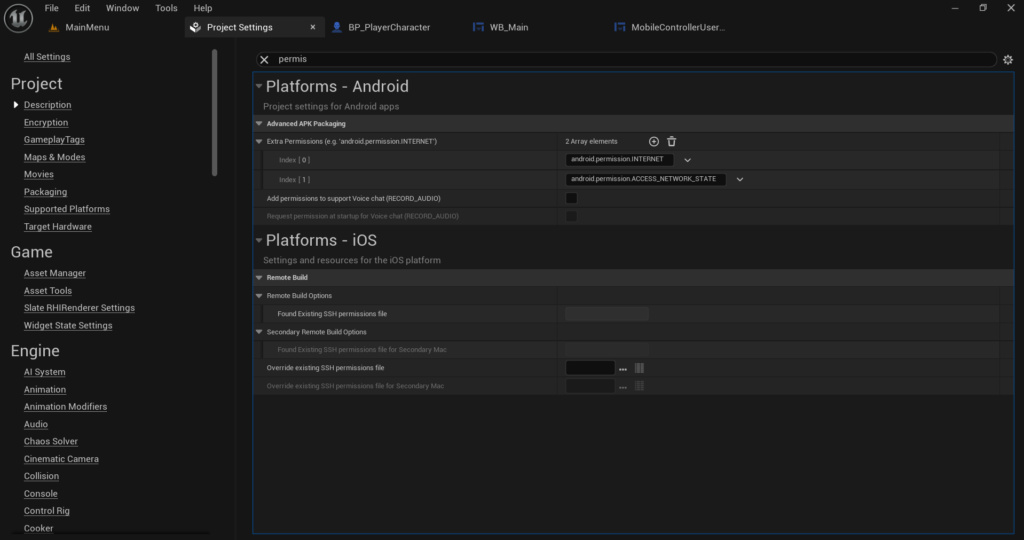
Go to Edit > Project Settings > Platforms > Android > Advanced APK Packaging and review your Extra Permissions list. A typical UE5 game only needs INTERNET and ACCESS_NETWORK_STATE for ads and online features, plus com.android.vending.BILLING if you have in-app purchases.
If you see permissions in this list that you do not remember adding or do not actually use, remove them. Leftover permissions from a plugin you tested once and stopped using are a common reason for review delays since Google’s automated scanner flags permissions that do not match what your app’s declared functionality suggests it needs.
Step 6: Verify Ad SDK Compliance Specifically
Since most UE5 mobile games monetize through AdMob this deserves its own attention.
Make sure your AdMob App ID is correctly set wherever you configured it, whether that is in the Bansh Ads plugin settings or your manual APL configuration. A missing or incorrect App ID causes crashes which can lead to a policy violation for app stability, separate from any Data Safety issue.
Make sure you are not showing ads in a way that violates Google’s ad placement policies. Do not place a banner ad directly on top of a button the player needs to tap, and do not show an interstitial ad immediately when the game opens before the player has done anything, since both of these patterns get flagged during review as deceptive or disruptive ad placement.
Declare your ad SDK properly in the Data Safety form under Advertising or marketing purposes and make sure your privacy policy mentions that you use Google AdMob specifically by name.
Step 7: Handle Account Deletion if You Have Player Accounts
If your game uses Google Play Games Services login or any system where players create an account or have persistent data tied to an identity, Google requires you to provide a way for players to request account and data deletion.
This applies even to a simple game with leaderboards since the player’s Play Games account is linked to their in-game data. Add a way for players to either delete their data from inside the game or provide a web based account deletion request process and declare this in your Data Safety form and privacy policy.
For most small UE5 games without a custom backend server, deleting the player’s local SaveGame data and noting in your privacy policy that no data is retained on any server beyond what Google Play Games Services itself manages is usually enough. If you do run your own backend or database for player data you need an actual deletion request mechanism.
Step 8: Test Your Build Before Submission
Before uploading your final build to Play Console do a full review of your own app exactly the way Google’s reviewers would.
Install your signed APK or AAB on a real device and go through your settings menu. Confirm the privacy policy link works and opens correctly. Confirm you are not requesting any permission popup that does not have a clear in-game reason tied to it. Confirm your ads are not blocking any required interaction and that there is no ad showing within the first few seconds of opening the game without the player initiating anything.
Check your Project Settings > Platforms > Android > APK Packaging one more time and confirm your Target SDK Version matches the current Play Store requirement before you build your final release.
Step 9: Respond Correctly if You Do Get Rejected
If you do receive a rejection email read the specific policy section Google references carefully. Play Console rejection emails almost always tell you exactly which policy was violated and which specific area of your Data Safety form or app behavior caused it.
Go back into Play Console and check the App content dashboard. It will show you a checklist of declarations and often flags the exact one that needs correcting with a red or yellow warning icon. Fix that specific declaration, save the changes and resubmit. You do not always need to upload a new build for a Data Safety correction since these can often be updated independently of your APK version.
If the rejection is about target API level the fix requires you to actually rebuild your APK with the corrected Target SDK Version setting and resubmit it as a new build.
Common Mistakes That Lead to Rejection
The most common mistake is filling out the Data Safety form once early in development and never updating it after adding new plugins later. If you add Google Play Games Services six months after your initial submission and never go back to update your Data Safety declaration that mismatch can get flagged during your next update review.
The second common mistake is using a generic privacy policy template that does not actually mention the specific SDKs your game uses. Reviewers and automated systems check for consistency between what you declare and what your actual app does.
The third mistake is leaving the UE5 default Target SDK Version unchanged after updating your engine version. Each UE5 release ships with a default that may already be outdated by the time you are ready to publish, so always check this manually right before your final build rather than trusting the default.
The fourth mistake is requesting permissions through old or unused plugins. Go through your enabled plugins list periodically and remove ones you are not actively using, since each one can silently add permissions to your manifest that you are not aware of.
Final Thoughts
Play Console rejections for Data Safety and SDK policy issues are almost always fixable once you understand exactly what Google is checking for. The key is accuracy. Declare exactly what your game’s SDKs actually collect, keep your privacy policy specific to your actual implementation and make sure your Target SDK Version matches the current requirement before every submission.
Treat your Data Safety form as a living document that needs updating every time you add or remove a plugin, not something you fill out once and forget. This single habit prevents most of the rejections that catch UE5 developers off guard months after their initial launch.
If you get a specific rejection message that does not make sense to you reach out at Admin@KaliPress.fun with the exact wording from Google’s email and I will help you figure out exactly what needs to change.

Solo Indie Game Developer and Unreal Engine (UE4 & UE5) Specialist with over 5 years of experience building optimized Android games from scratch.
I specialize in handling the full development pipeline independently taking mobile titles from concept to high-performance, publishing ready APK/AAB builds. Highly focused on rendering optimization for low-to-mid range devices, Blueprint scripting, and custom mechanics.
Through this blog, I share my practical knowledge and tutorials to help aspiring developers master the Unreal Engine mobile ecosystem.