
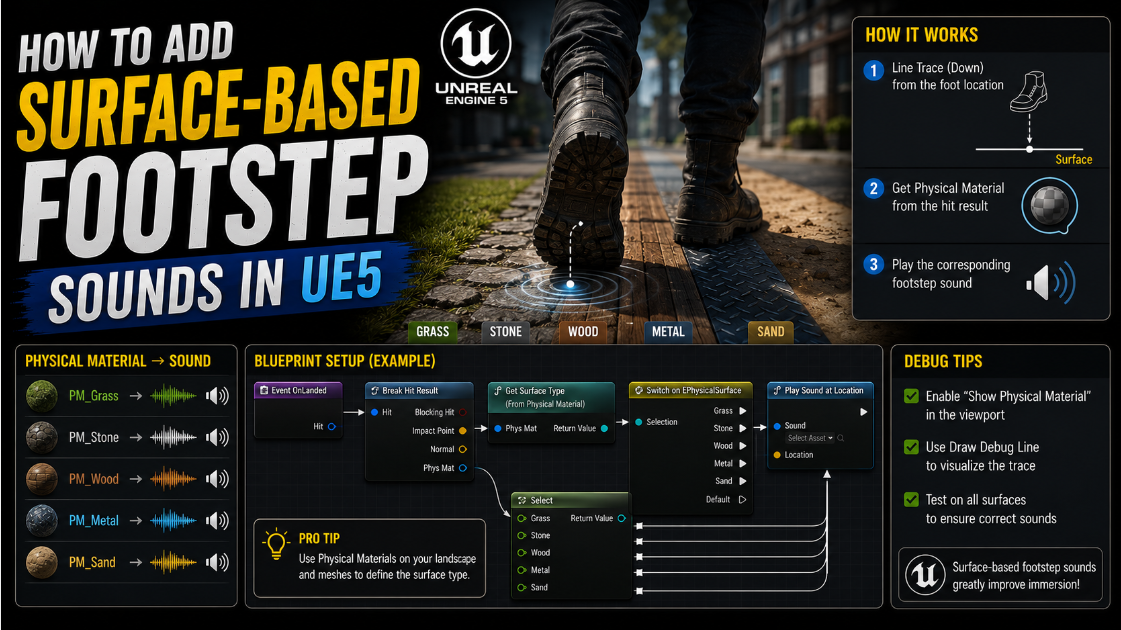
How to Add Surface-Based Footstep Sounds in UE5
Walking on grass should sound different than walking on metal or wood. This small detail makes a game feel far more real and polished.
In this article I will show you exactly how to build a footstep system in UE5 that automatically detects what surface the player is standing on and plays the correct sound for it. This is one of those features that seems complicated at first but once you understand each piece it comes together very easily.
Step 1: Get Your Footstep Sound Files Ready
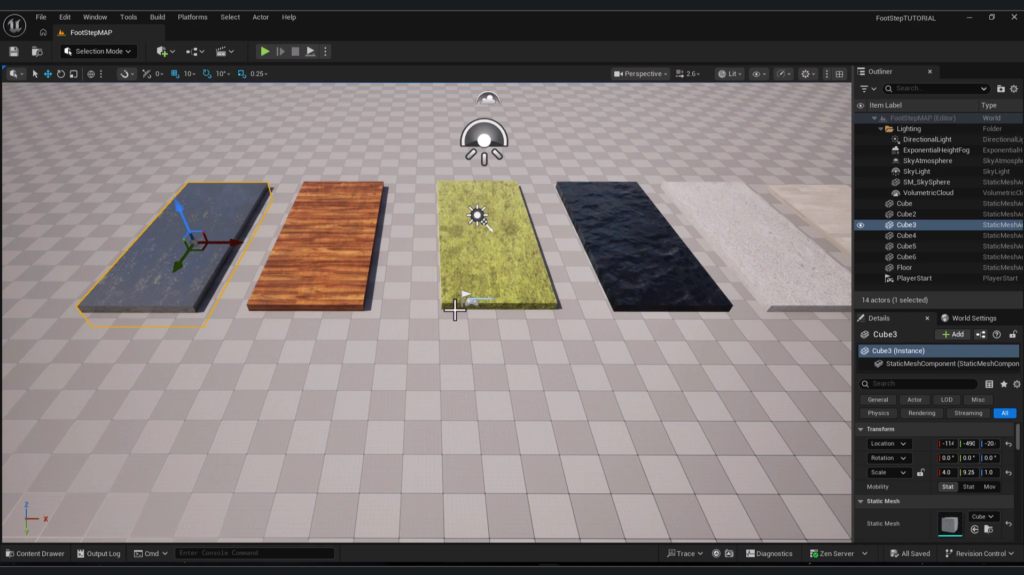
Before starting anything in the engine you need actual sound files for each surface type such as grass metal wood and so on. Once you have these files import them into your UE5 project like you would import any other audio file. For this tutorial we will use six different surfaces as an example. Grass wood and metal being the main ones with their own unique materials already applied to some test cubes in the level.
Step 2: Create Your Surface Types
The first real setup step is telling Unreal Engine what kinds of surfaces actually exist in your game. Go to Edit then Project Settings and search for Surface in the search bar. Here you will find a section where you can define custom Surface Types. Add entries here for each surface you plan to use such as Grass Metal and Wood. Once you have added all of them close the Project Settings window.
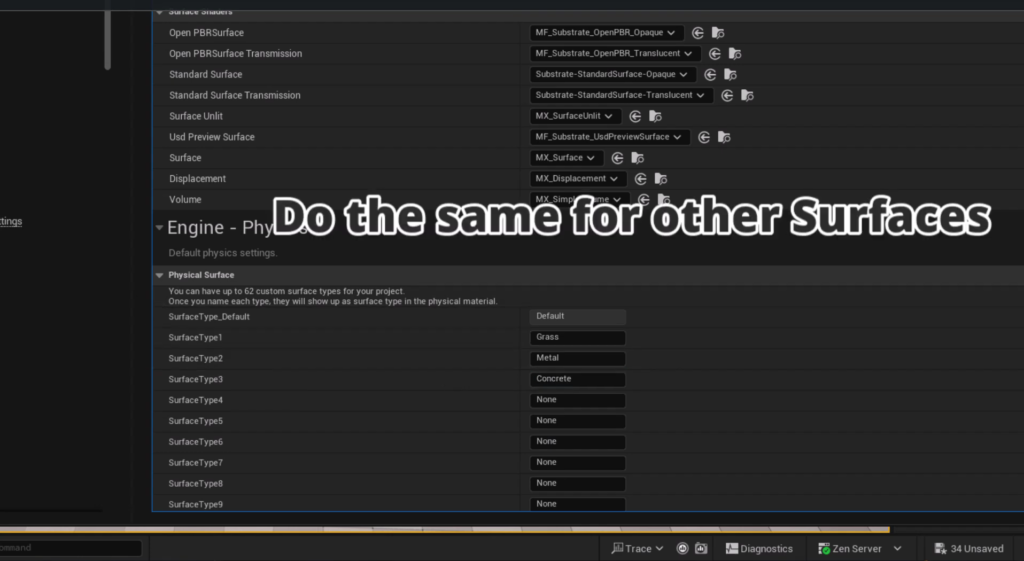
Think of Surface Types as simple labels. They do not do anything by themselves yet but they let Unreal Engine know these categories exist so we can reference them later in our logic.
Step 3: Create Physical Materials for Each Surface
Now we need to create something called a Physical Material for each surface type. A Physical Material is a special asset that tells Unreal Engine how a surface behaves physically and importantly for us it lets us tag a surface with one of the Surface Types we just created.
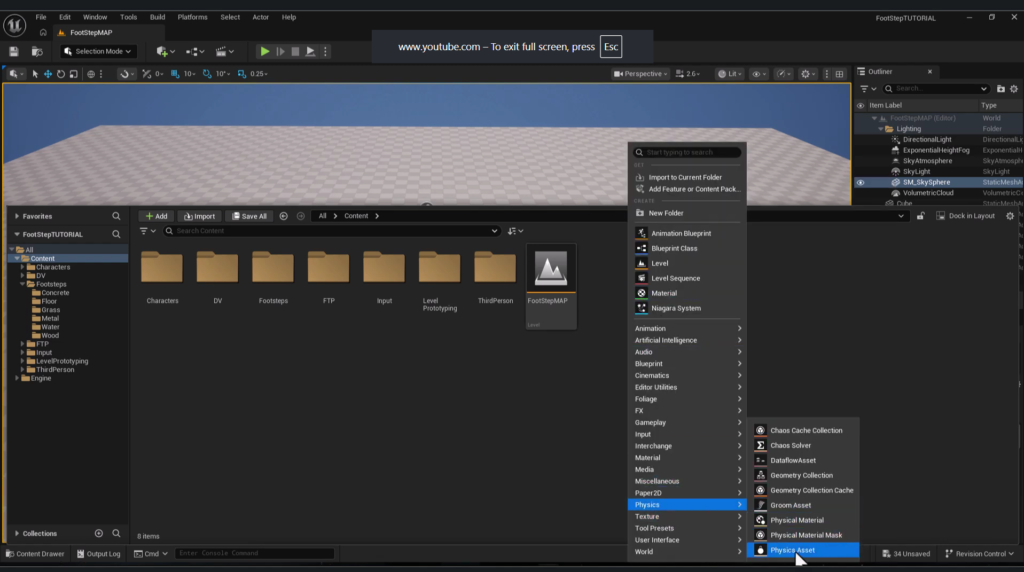
Right click in your Content Drawer go to Physics and select Physical Material. Create one for each surface and name them clearly such as Grass Material Metal Material and Wood Material.
Open each Physical Material and find the Surface Type field. By default this will be set to something generic. Change it to match the correct surface such as setting Grass Material’s Surface Type to Grass. Save this and repeat the same process for every other surface you have.
Step 4: Assign the Physical Material to Your Actual Surfaces
Creating the Physical Material alone does not connect it to anything in your level yet. Now select one of your surface objects in the level such as the grass cube. In the Details panel look for the Material section and inside it you will find an option called Physical Material Override.
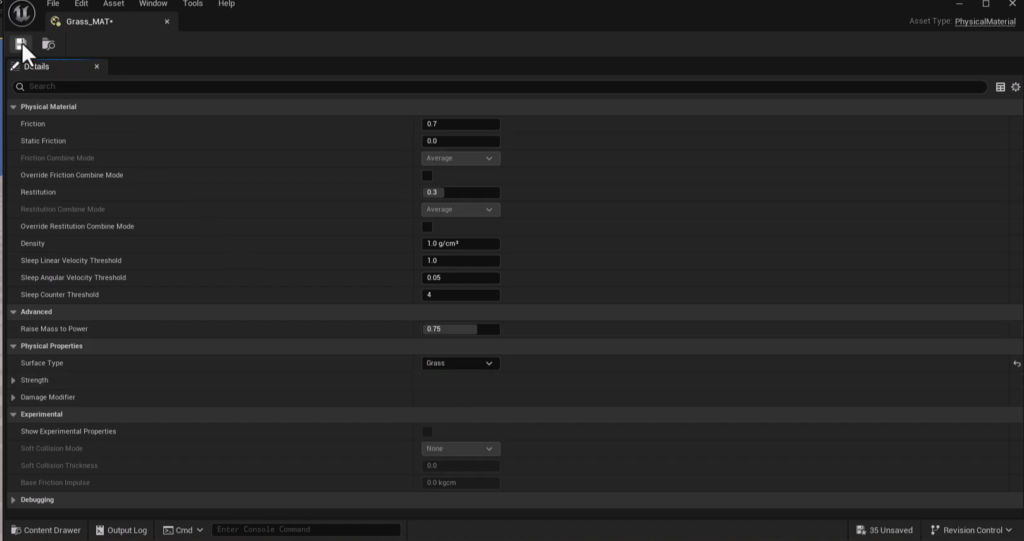
Assign your Grass Material here. Repeat this same step for every other surface in your level making sure each one points to its correct matching Physical Material. This is the connection point that lets Unreal Engine know that walking on this specific object in the level means the player is standing on grass rather than metal or wood.
Step 5: Set Up a Sound Cue for Each Surface
Now let us prepare the actual sounds that will play. Go to your footstep sounds folder for example the grass sounds folder. Right click select Audio and create a Sound Cue. Name it something like Grass Sound Effect and open it.
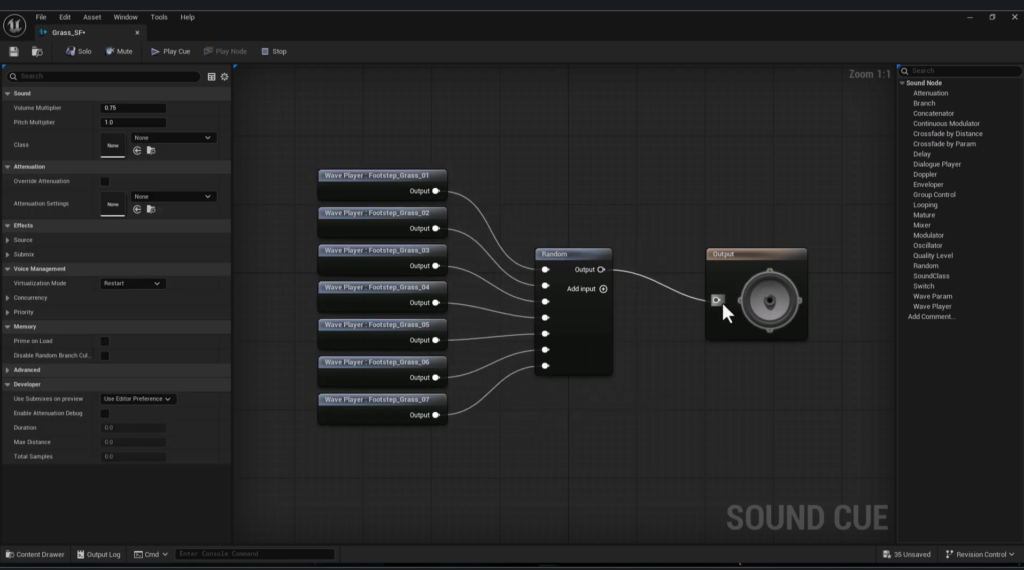
Import all the different grass footstep sound variations you have into this Sound Cue. Since real footsteps do not sound exactly the same every single step we want some variation. To do this add a node called Random inside the Sound Cue and connect all your imported sound files into it. This way every time this Sound Cue plays it randomly picks one of the sounds instead of always playing the exact same one which would sound repetitive and robotic very quickly.
You can test this by pressing the play button on the Sound Cue itself. If the volume feels too quiet you can also increase it here directly inside the Sound Cue settings, for example setting it to a value like two. Repeat this entire process for every other surface type so you end up with a properly set up Sound Cue for grass metal wood and any other surface your game uses.
Step 6: Add Footstep Notifies to Your Animation
Now we need to actually trigger something the moment the character’s foot touches the ground during their walking or running animation. Open your walk or run animation asset. In the Notifies section click the Track menu and Add Notify Track. Name this track something like Footstep
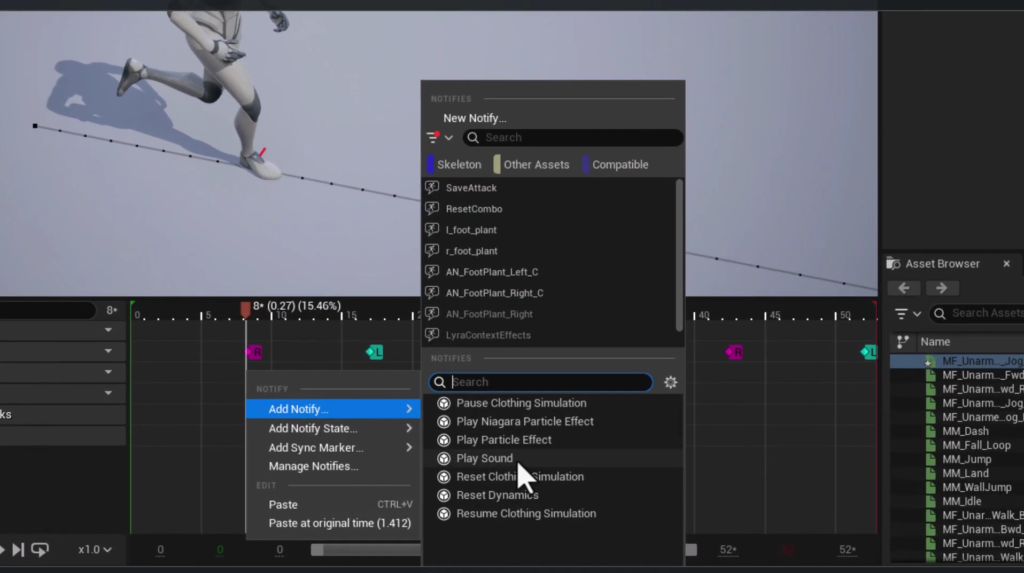
At this stage you could simply right click on the timeline at the exact frame where the foot hits the ground and add a Play Sound notify directly. This would technically make a footstep sound play. However this only lets you play one single fixed sound every time regardless of what surface the character is actually standing on which is exactly the limitation we are trying to solve in this tutorial.
Step 7: Create a Custom Anim Notify for Smart Footsteps
Instead of using a basic Play Sound notify we are going to build our own custom notify that can actually detect the surface beneath the player and choose the correct sound automatically. Delete the simple sound notify you may have just added since we are replacing it with something smarter.
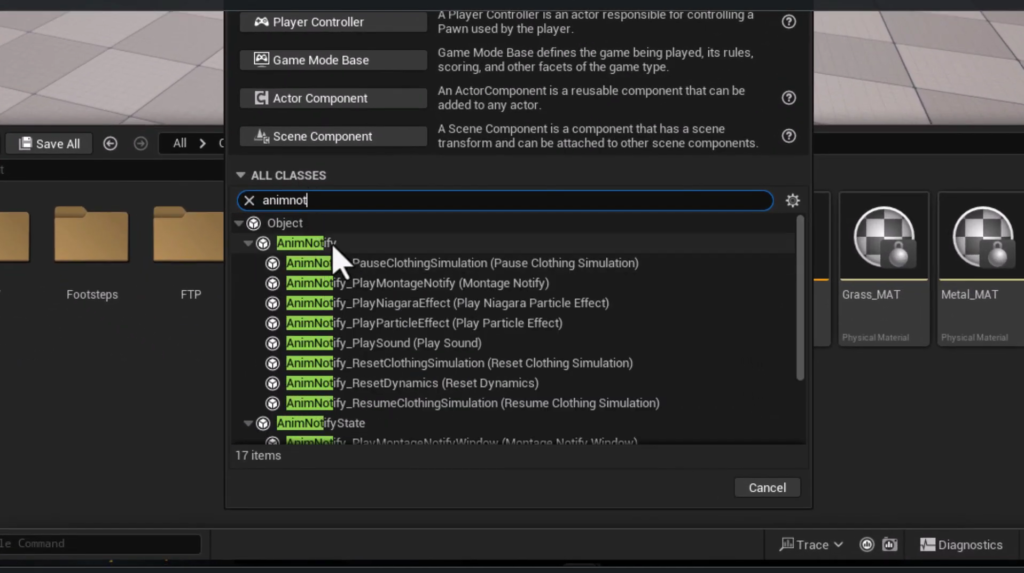
Right click in your Content Drawer go to Blueprint Class and search for Anim Notify. Create one and name it something like AnimNotify Footstep.
Open this new Blueprint and find the function called Receive Notify. Override this function since this is where we will write the logic that runs every single time this notify is triggered on the animation timeline.
Step 8: Detect the Surface Using a Line Trace
Inside Receive Notify we need to figure out exactly what surface is currently below the character’s feet. The way we do this is with a Line Trace which is basically like shooting an invisible line straight down from the character to check what it hits.
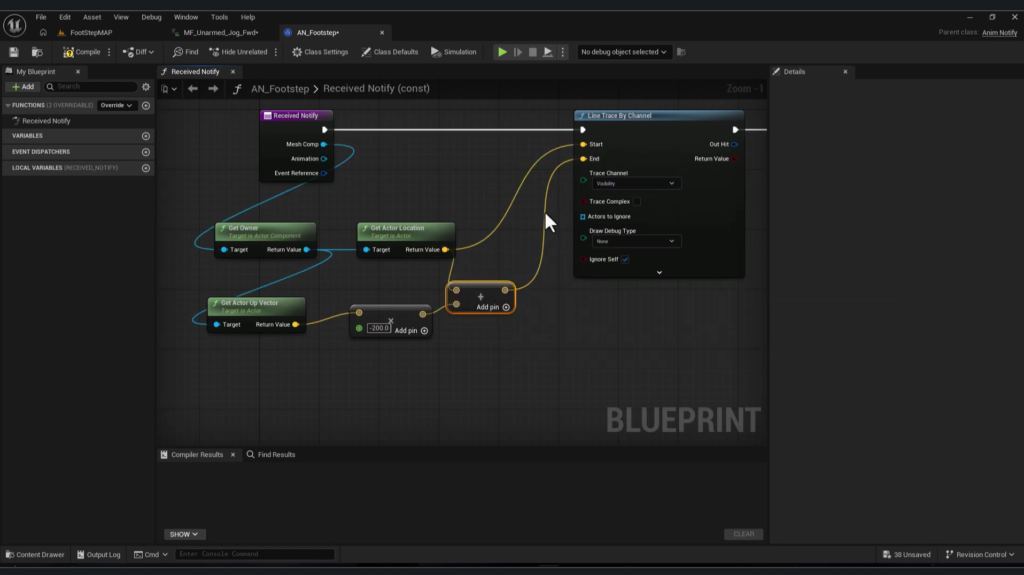
Add a Line Trace By Channel node. For the starting point of this trace get the Owner of this notify which is the character and get its Actor Location. Plug this into the Start input.
For the End point we need a point below the character. Get the Owner again and this time get its Actor Up Vector which represents the direction pointing straight up from the character. Multiply this vector by a negative number such as negative two thousand which effectively flips it to point straight down instead and extends it far enough to definitely reach the ground. Add this result to the character’s location and plug this into the End input of the Line Trace.
Make sure the Line Trace has Trace Complex enabled or the correct settings so it can return Physical Material information which is essential for the next step.
Step 9: Read the Surface Type and Play the Correct Sound
From the Line Trace node connect its execution output into a Branch node checking whether Out Hit is valid. If the trace successfully hit something get the Surface Type from the Out Hit result. This pulls exactly the surface information we set up all the way back in Step 3 and Step 4.
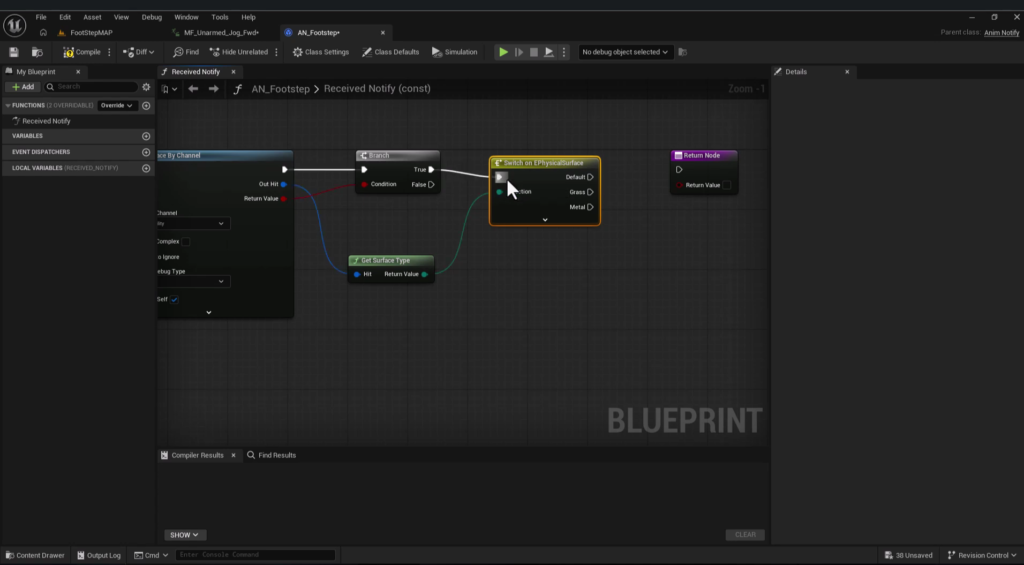
Connect this Surface Type value into a Switch node. This creates individual branches for each surface type you defined earlier such as Grass Metal and Wood plus a Default option for any surface that was not specifically tagged.
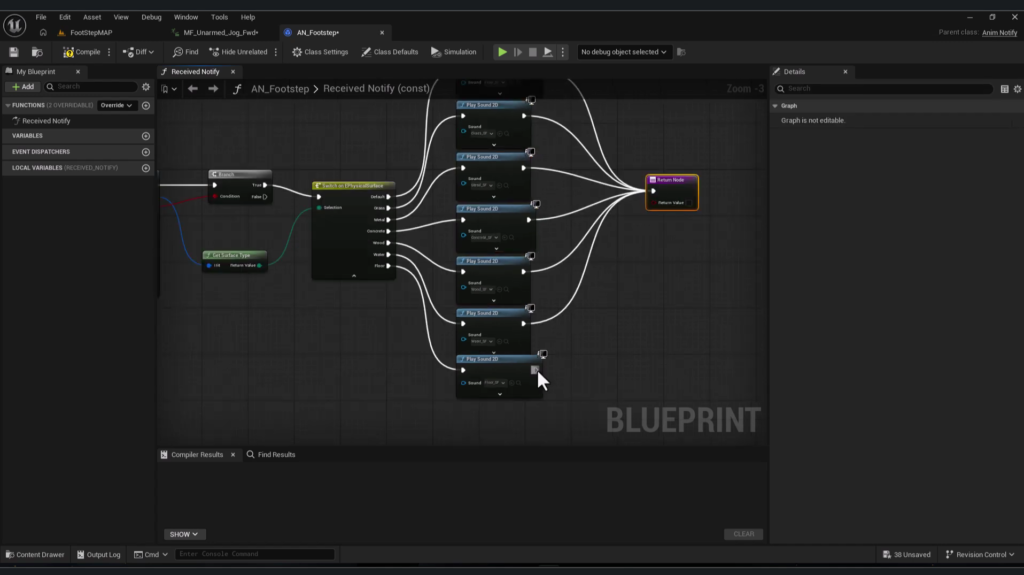
For each of these branches add a Play Sound 2D node and connect it to the matching Sound Cue you created earlier. So the Grass branch plays your Grass Sound Effect Sound Cue the Metal branch plays your Metal Sound Effect Sound Cue and so on. For the Default branch you can use a generic floor sound as a fallback in case the character somehow steps on a surface that was never assigned a specific Physical Material.
Connect all of these branches back into the notify’s Return Node to properly finish the function. Compile and save this Blueprint once everything is connected correctly.
Step 10: Replace the Old Sound Notify With Your New System
Go back to your walking or running animation sequence. On your Footstep notify track instead of adding a simple Play Sound notify like before, add your newly created AnimNotify Footstep instead at each point in the animation where the foot actually touches the ground.
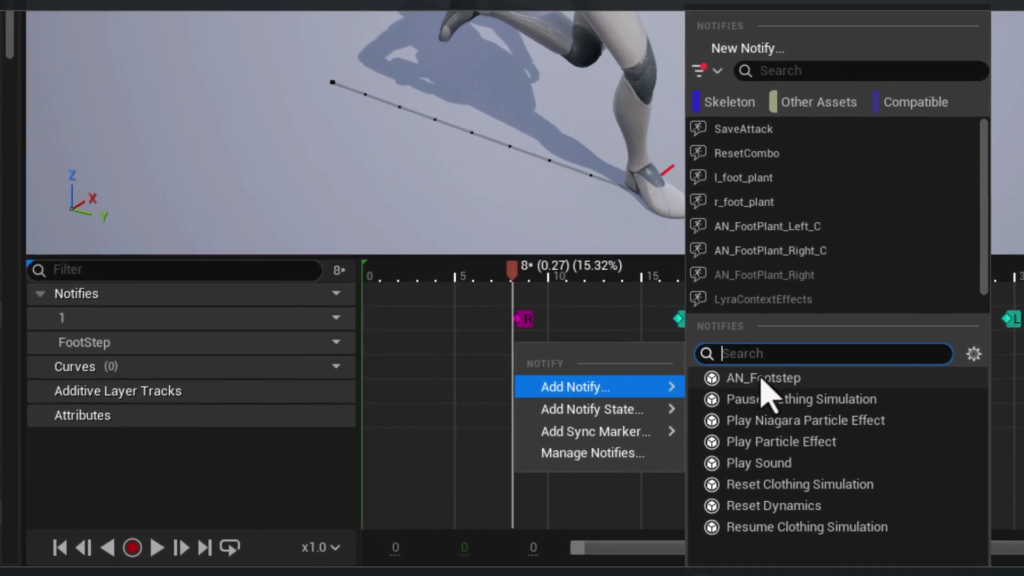
Save everything and test your game. Try walking across your different surfaces such as starting on metal then moving onto grass and so on. You should hear the correct matching sound play automatically for each surface without you needing to manually assign different sounds to different parts of the animation ever again.
Why This System Works So Well
The real strength of this approach is that all the surface detection logic lives in one single reusable place inside your AnimNotify Footstep Blueprint. You do not need to duplicate footstep logic across every single animation or every single character in your game. Any animation that uses this same notify will automatically get correct surface based footsteps without any extra work.
If you ever add a new surface type to your game later such as sand or water the process is simple and consistent. Create the Surface Type in Project Settings create a matching Physical Material assign it to your new surface objects in the level build a Sound Cue for it and add one more branch to the Switch node inside your AnimNotify Footstep Blueprint. Everything else in the system continues working exactly as it did before.
Final Thoughts
A footstep system that actually reacts to the ground beneath the player is one of those small details that players might not consciously notice when it is done right but would definitely notice if it was missing or wrong. Walking silently across gravel or hearing a metal clang while standing on soft grass breaks immersion instantly.
The system covered in this article using Surface Types Physical Materials a Line Trace and a custom Anim Notify gives you a clean and scalable way to handle this correctly no matter how many surfaces or characters your game eventually has. Once it is set up correctly it genuinely runs itself and all that is left for you to do is enjoy how much more alive your game suddenly feels while walking around.

Solo Indie Game Developer and Unreal Engine (UE4 & UE5) Specialist with over 5 years of experience building optimized Android games from scratch.
I specialize in handling the full development pipeline independently taking mobile titles from concept to high-performance, publishing ready APK/AAB builds. Highly focused on rendering optimization for low-to-mid range devices, Blueprint scripting, and custom mechanics.
Through this blog, I share my practical knowledge and tutorials to help aspiring developers master the Unreal Engine mobile ecosystem.



One Comment